When migrating an ip-address to another server, you will notice it will take anywhere between 1 and 15 minutes for the ip-address to work on the new server. This is caused by the arp cache of the switch or gateway on the network. But don’t worry: you don’t just have to wait for it to expire.

Why it happens
ARP (Address Resolution Protocol) provides a translation between ip-addresses and mac-addresses. Since the new server has another mac-address and the old one stays in the cache for some time, connections will not yet work. The cache usually only exists for some minutes and prevents asking for the mac-address of a certain ip-address over and over again.

One solution to this problem is to send a command to the gateway to tell it to update its cached mac-address. You need the ‘arping’ utility for this.

Installing arping
There are two packages in Debian that contain arping:

arping - sends IP and/or ARP pings (to the mac address)
iputils-arping - Tool to send ICMP echo requests to an ARP address

I’ve had best results with the ‘iputils’ one, so I recommend to install that one. This is mainly because the other package’s command does not implement the required -U flag.

aptitude install iputils-arping

I haven’t installed arping on CentOS yet, but was told the package is in the RPMForge repository.

Using arping
The command looks like this:

arping -s ip_address -c1 -U ip_addresss_of_gateway

Explanation:
-s is the source ip-address, the one you want to update the mac-address of
-c1 sends just one arping
-U is Unsolicited arp mode to update neighbours’ arp caches
This is followed by the ip-address of the gateway you want to update. In most cases this is your default gateway for this network.

Example: you moved 192.168.0.100 to a new server and your gateway is 192.168.0.254, you’d run:

arping -s 192.168.0.100 -c1 -U 192.168.0.254

After you’ve send the arping, the gateway will update the mac-address it knows of the ip-address and traffic for this ip-address will start flowing to the new server.

Bottom line: whenever you migrate an ip-address to another server, use arping to minimize downtime.

Push a specific commit (actually: everything up and including this commit):

git push origin dc97ad23ab79a2538d1370733aec984fc0dd83e1:master

Push everything exept the last commit:

git push origin HEAD~:master

The same, now the last two commits:

git push origin HEAD~2:master

Reorder commits, aka rebasing:

git rebase -i origin

Pulling commits from repo to local

git pull --rebase

When a conflict occurs, solve it, then continue:

git rebase --continue

Put local changes apart (shash them)

git stash save stashname

Show all stashes

git stash list

Retrieve a shash

git stash stashname

When you have committed a change and want to revert it:

Make sure all work is committed or stashed!

git checkout 748796f8f2919de87f4b60b7abd7923adda4f835^ file.pp
git commit
git revert HEAD
git rebase -i
git commit --amend

Explanation:
– Checkout the file as it was before your change (line 1)
– commit it (line 2)
– Revert this commit (line 3)
– Using rebase merge (fixup) this commit with the previous commit that contained a change that you want to remove (line 4)
– Finally, rewrite the commit message and you’re done (line 5)

Git rocks!

A few days ago we installed a ‘Battery Backup Unit’ in our secondary storage server. This allows us to turn on the ‘Write Back Cache’. The performance impact was impressive..

Enabling the Write Back Cache means writes are committed to the raid controler’s cache (which is much faster) so you don’t have to wait for the data to be written to disk. Normally, this is a risky operation because when the power goes down unexpectedly the data in the raid controller’s cache is lost. Thanks to the battery the raid controller can finish all of its writes to the disk even there is no more power.

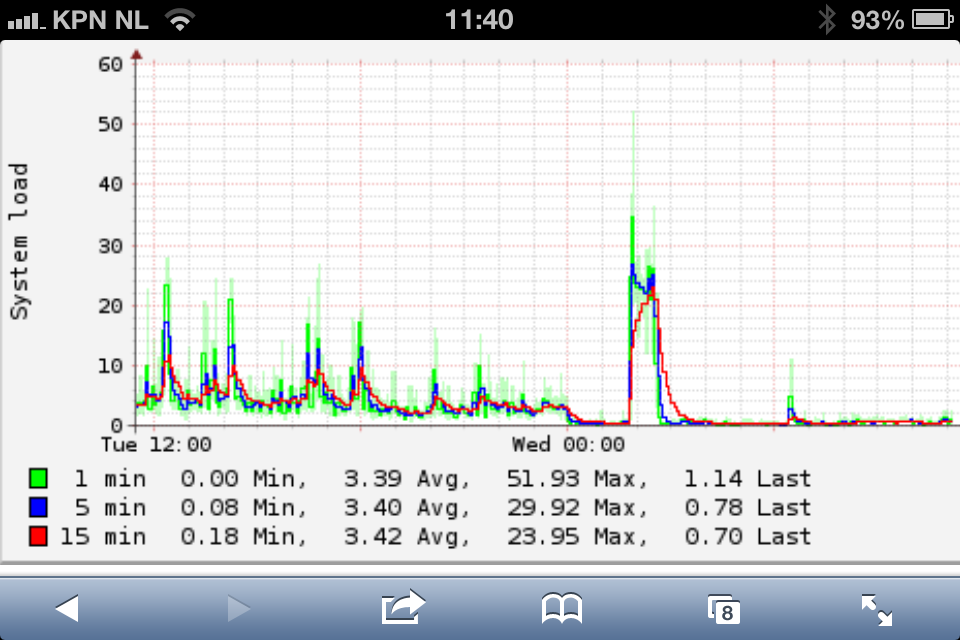
Have a look at the below graph. It shows the load dropped significantly after we’ve installed this battery.

Starting on the left you see normal operations until we switched off the server around midnight. All services kept working by the way, but more about that redundancy magic in another post. The big spike around 1am was caused by syncing the data with the primary storage again after the server came online again. We had not turned on the Write Back Cache at that time. When it finished syncing, we rebooted the server once again, upgraded firmware and activated the Write Back Cache. We immediately saw an performance boost of around 20 times! The small spike around 2am was syncing with the primary storage again, but this time with Write Back Cache enabled. Our load averages now peak at 1 or 2 instead of >20.

Lesson learned: always install a Battery Backup Unit so you can safely turn the Write Back Cache on!

Sometimes it is necessary to block access from a certain ip-address. This can be done easily using route:

route add -host 1.2.3.4/32 reject

While this works, it does not provide the best user experience because from 1.2.3.4 the website now seems down, while it isn’t. A better way is to display an error message instead of the website requested.

I’m using load balancing to distribute the load to different web servers. The software in use is Keepalived. To block a given ip-address, I have the firewall tag it and then make Keepalived forward it to another web server instead. It goes like this:

iptables -t mangle -A PREROUTING -i eth0 \
-p tcp -s 1.2.3.4 --dport http -j MARK --set-mark 2000

This iptables rule just sets a mark ‘2000’ (can be any integer) when a request from 1.2.3.4 comes in for port ‘http’. In keepalived.conf we setup how to handle this fwmark:

virtual_server fwmark 2000 {

delay_loop 6
 lb_algo wlc
 lb_kind NAT
 persistence_timeout 0
 protocol TCP

real_server 10.10.10.1 80 {
 weight 1
 TCP_CHECK {
  connect_port 80
  connect_timeout 3
  }
 }
}

As you can see, Keepalived will send the request to ‘10.10.10.1’ which is for example an extra server. There you can display a static page with an error message explaining what’s going on. You can add more capacity by adding another ‘real_server’, if you wish. This will also distribute the load between the real_servers.

Now, when you block an ip-address, instead of the website being ‘down’, you now display an error message. Add your phone number or e-mail address so they can get in touch to fix the problem. In my experience, this approach works better and prevents urgent ‘website down’ calls.

To extend this even further, you can have a script add the fwmark rule above automatically when you detect some sort of abuse you want to block. It’s just as easy as using ‘route’!

Here are three ways to backup your MySQL database(s) and compress the backup on the fly:

1. Dump database ‘dbname’ into a compressed file

mysqldump \
-u user \
-ppassword \
--host=mysql-server \
dbname | \
gzip > dbname_backup.sql.gz

To dump multiple databases, you can either write a ‘for loop’ on a ‘SHOW DATABASES’ query result or use the next command to backup to a single file.

2. Dump all databases into a compressed file

mysqldump \
--all-databases \
-u user \
-ppassword \
--host=mysql-server | \
gzip > dbname_backup.sql.gz

3. Dump database ‘dbname’ except for some tables into a compressed file

mysqldump \
--ignore-table=dbname.ignoredtable1 \
--ignore-table=dbname.ignoredtable2 \
--ignore-table=dbname.ignoredtable3 \
-ppassword \
-u user \
--host=mysql-server \
dbname | \
gzip > dbname_backup.sql.gz

This allows you to skip certain tables that are unimportant (for example cached data) or static (imported from somewhere else). You can skip as many tables as you like. Just repeat the line for each table you want to ignore.

The pipe to gzip in the last line of all examples, makes sure the backup gets compressed before written to disk. You can safely do so to save some disk space. Just remove it to have an uncompressed backup.