suse-logoA few weeks ago I attended a full week of SUSE training, which I really enjoyed. There were lots of highly skilled geeks and the course had a nice solid pace. By the end of the week I did the CLE practicum exam (to become a Certified Linux Engineer). Today I heard I passed! 🙂

I’ve been working with SUSE Linux Enterprise Server since I started my new job back in December and the training really helped me.

CLE training

Impression of the CLE training


Before I’m officially certified, there’s another step to take though. One needs to pass three exams: CLA, CLP and CLE. I’ve passed both CLA and CLE now, so I only need to pass the one in between. This happened because the course I attended was aimed towards RHCE certified professionals, which I am not (yet). So, either passing the CLP or RHCE practicum will bring in the CLE certification as well. Looking forward to continue the certification process!

PS: See this post for an overview of Linux certifications.

When you create firewall rules with iptables on Linux, you want to make them persistent over reboot, because they are not by default. Different Linux distributions have different methods of achieving this, although the basics are similar. I’ve been working with Debian, Red Hat Enterprise Linux and SUSE Linux Enterprise Server and in this blog I’ll describe how to configure each of them to save your iptables rules across reboots.

First the good news: the iptables package, the administration tool for packet filtering and NAT, always ships with Linux distributions. The package also includes the ‘iptables-save‘ and ‘iptables-restore‘ tools. These do what you might already expect from their names: save or restore iptables rules. ‘iptables-save‘ outputs to stdout, which you can save to a file:

iptables-save > /etc/iptables/rules

To load these again:

iptables-restore < /etc/iptables/rules

These really are the basics that work across Linux distributions and that you can use in your custom boot scripts. In addition to this, each Linux distribution has its own way to make this process easier.

Red Hat Enterprise Linux (RHEL):

redhat-logo

RHEL (and the same counts for CentOS and Fedora) has some built in mechanism to help automate this. First of all, there are some settings in ‘/etc/sysconfig/iptables-config‘:

IPTABLES_SAVE_ON_STOP=”yes”
IPTABLES_SAVE_ON_RESTART=”yes”

You can set them to “yes” to have persistent iptables rules. In fact, there are many more settings in that file that allow for finer control. That’s all, since the rest is handled automatically.

At any time it’s possible to save the current state. Just run:

service iptables save

And it will, like on reboot, save the rules to: ‘/etc/sysconfig/iptables‘. Pretty easy and pretty powerful!

SUSE Linux Enterprise Server (SLES 11):

suse-logo SLES (and the same counts for OpenSUSE) is yet another story. SLES 11 now ships with SUSE Firewall. Instead of defining the rules yourself, you tell Yast what you want to achieve and it generates the needed iptables rules for you. Although SUSE Firewall does allow you to add custom rules, it isn’t really designed for it. The tool is pretty nice though, because it integrates fully with Yast and allows for easy maintenance of rules. When you install a package, it automatically opens the associated port, for example.

This all might seems a bit scary for us sysadmins, right?! Don’t worry, it’s still possible to manage rules on your own by disabling SUSE Firewall. But have a look at it first, as you might as well like it.

To start the SUSE Firewall admin module, run:

yast2 firewall

The interface is pretty self-explaining. Afterwards, to activate the changes run:

SuSEfirewall2

It’s even possible to by-pass Yast, and edit the config file directly. It’s safe to combine the two methods, no problem.

vim /etc/sysconfig/SuSEfirewall2

For example, to open a port you’d edit the ‘FW_SERVICES_EXT_TCP’ variable. Just make a list (space separated) with protocols you want to allow. These protocols refer to files in ‘/etc/sysconfig/SuSEfirewall2.d’.

Like with using Yast, activate the changes when you’re done.

SuSEfirewall2

I’ve used it for some time and it’s actually pretty easy. It just depends on the project whether or not to use it, I guess.

Debian

debian-logoWhen I was using Debian (same counts for Ubuntu as well), I used to create a small shell script and place it in ‘/etc/network/if-pre-up.d’. Just before the network interface is brought up, the iptables rules will be restored. The idea is to do the same when the interface goes down (use the ‘/etc/network/if-post-down.d’ folder to place the script in). Using these thechniques, you can create something and have fine control over it.

Recently I heard about a tool called ‘iptables-persistent’ that can automate this out-of-the-box. Here’s the package description:

iptables-persistent - boot-time loader for iptables rules: Current iptables rules can be saved to the configuration file '/etc/iptables/rules.v4'. These rules will then be loaded automatically during system startup.

To install it:

sudo apt-get install iptables-persistent

During install, the program asks to save both ipv4 and ipv6 iptables rules. Please note this counts for Wheezy, the current stable release uses the file ‘/etc/iptables/rules’.

To manually save the iptables rules, run:

/etc/init.d/iptables-persistent save

Although this should be done automatically when you reboot. It looks like the Red Hat way of doing things, but just with an extra package installed.

Conclusion: 
iptables all over the place, just with different tooling to automate it 🙂

The Raspberry Pi can easily be setup as an OpenVPN server. One common feature is to access servers or services on the remote network. Another use case is to provide a secure connection when you’re not at home.

You can do this by sending all traffic over the VPN connection, instead of only traffic for the remote servers. The idea is to connect your laptop to your OpenVPN server (this is encrypted by default) and access the internet from there. Whatever you send over the wifi connection, is encrypted by the VPN and thus safe. In the comments on the previous post there was someone trying to set this up. To help him solve the issue, I tested this myself, and decided to write a post showing how to do it because I really like the idea.

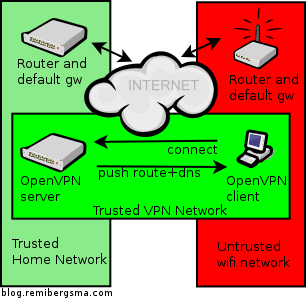
This is how it looks like: you’re on a untrusted network (red) and create a safe VPN connection (green) and all traffic will flow over the green network, to the also trusted home network (lighter green). People on the red network now cannot see the sites you visit.

OpenVPN secure wifi browsing

Here’s how to set it up:

  1. Allow the OpenVPN server to route ip traffic
  2. Tell the default gw where to send traffic for OpenVPN clients
  3. Send DNS servers to the VPN Clients
  4. Configure the OpenVPN Client
  5. Test your setup

Allow the OpenVPN server to route ip traffic
First of all, you need to allow the OpenVPN server to route packets.

sudo vim /etc/sysctl.conf

Add this line, or alter it if it already exists:

net.ipv4.ip_forward = 1

Then activate the change:

sudo sysctl -p

The change is now activated, and persistent.

Tell the default gw where to send traffic for OpenVPN clients
Another important step is to tell the default gateway in the home network (lighter green) where to send traffic for theOpenVPN clients. If you omit this step, this traffic gets lost. More info in this post. Short story: add this static route to your default gateway. If it’s Linux, you’d run:

sudo route add -net 10.8.0.0/24 gw 10.5.5.5

Assuming 10.5.5.5 is the ip address of the OpenVPN server. When your router is not Linux, check the manual on howto add a static route.

Send DNS servers to the VPN clients
Most ISP’s restrict the usage of their DNS servers to their own network. When you connect to Wifi, you probably receive some DNS servers via DHCP. When you connect to VPN and then send all traffic through the VPN, you are effectively using the network (and internet connection) of your VPN server and not the local network. The DNS-servers you received via DHCP might not work because you access them from another network. To solve this, configure the OpenVPN server to push public DNS servers to use. Alternatively you can also push some local DNS servers or the DNS servers of your ISP.

sudo vim /etc/openvpn/server.conf

Add or edit these lines:

push "dhcp-option DNS 8.8.8.8"
push "dhcp-option DNS 8.8.4.4"

These are Google’s public DNS servers. Just enter some DNS servers that work on the network of your OpenVPN server and that you are allowed to use.

Configure the OpenVPN client
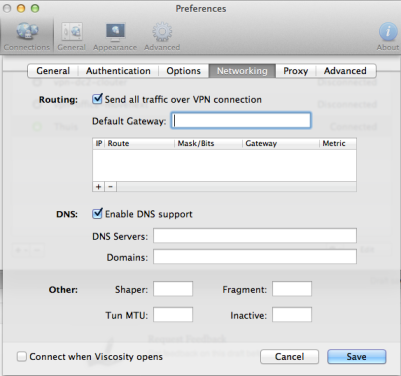
I’m using Viscosity and all I have to do is enable a setting to send all traffic over the VPN connection.

viscosity_enable_all_traffic_over_vpn

Alternative way: It’s also possible to configure the ‘Send all traffic over VPN connection’ on the server-side instead of the client. Both has pros and cons, of course. To set it server-side set this option in the server config:

push "redirect-gateway def1"

Test your setup
The final step: test your setup! Make sure you’re connected through some other network than the one the OpenVPN server is in. Use some public Wifi service of connect over 3G. My iPhone can share its 3G connection and start a Wifi hotspot. My MacBook connects via Wifi, then does the OpenVPN connection to the Pi. The expected behavior is then to see the public ip address of the OpenVPN server’s internet connection, instead of the 3G ip address. Use a website like whatismyip.com to test this. Do this before connecting the VPN, and after. It should be different.

Enjoy your secure browsing experience!

I’m using SSH’s key-based authentication to login to my servers using a SSH key pair. Of course my private key is protected with a password of its own. This has the consequence that even with key-based authentication, you still need to type a password: your private key passphrase. And you need to type it on every single connect. Although this is far more secure that having no passphrase on your private key, typing it so many times is a bit over done.

In this blog I’ll show you how to setup a system where you enter the passphrase only once per day when you start a new terminal session. For me this works great, as I now only type my passphrase in the morning when I login to my workstation and am able to connect password-less the rest of the day. Whenever I leave my desk, my screen is locked so no one can access my key.

Setting up key-based authentication

The first step is to generate a key pair to use.

ssh-keygen -t rsa -b 2048

The output is something like below. Enter your passphrase twice, when prompted.

Generating public/private rsa key pair.
Enter file in which to save the key (/home/remi/.ssh/id_rsa):
Enter passphrase (empty for no passphrase):
Enter same passphrase again:
Your identification has been saved in /home/remi/.ssh/id_rsa.
Your public key has been saved in /home/remi/.ssh/id_rsa.pub.
The key fingerprint is:
41:22:af:8b:4b:aa:94:34:a4:fa:5a:eb:91:4c:5b:5e remi@wks

The key's randomart image is:

+--[ RSA 2048]----+
|    . . .        |
|     o o         |
| .    . .        |
|o    .   .       |
|.o. o E S        |
|ooo* o           |
|.oO o            |
|.= +             |
|=o=              |
+-----------------+

To setup key-based authentication, copy your public key to the ‘.ssh/authorized_keys’ file on the server you want to connect to. You can do this by using ‘ssh-copy-id‘. You need to have access to the user account you want to connect to because you need to type its password to authenticate the copying.

ssh-copy-id -i ~/.ssh/id_rsa.pub user@server

You can now login to this server by typing only the passphrase of your private key, instead of typing the user account’s password.

Using ssh-agent to manage private keys
When you want to take this to the next level, you can use ‘ssh-agent‘ to manage your SSH keys. This program is started at login and remembers the keys you add each session. Through use of environment variables the agent can be located and automatically used for authentication when logging in to other machines using SSH.

The idea is that the agent is run in the user’s local PC, laptop, or terminal.  Authentication data need not be stored on any other machine, and authentication passphrases never go over the network. However, the connection to the agent is forwarded over SSH remote logins, and the user can thus use the privileges given by the identities anywhere in the network in a secure way.

To add a key, run ‘ssh-add‘ and type the passphrase of your private key. This is needed only once per session. After you’ve added your key to ‘ssh-agent‘, you should be able to SSH to the local machine without entering a password. This is more secure than a key pair without a passphrase because whenever your key gets lost, one still needs to type your passphrase to get access.

Use case
At work, I SSH to a central server from which I can access all the other servers. My public key is distributed to all servers, my private key is on my workstation. Now, for secure password-less logins to work, I need to be able to access my local ssh-agent from this central server. When you SSH to your server as I describe above, you don’t have to type the passphrase. When you have a look at the environment variables, you’ll notice SSH_AUTH_SOCK is set. This variable holds the path to the socket connecting to your ‘ssh-agent‘ running on your local machine. Authentication is now done this way!

Getting this to work with GNU screen
There’s a little problem when using this technique with GNU screen. When you reconnect to a running screen session from another location, the environment variable inside screen is not updated and so you need to type the password for your private key on each connect again. I found this post that describes a solution, which I further enhanced to make it work correctly for me:

export SSH_AUTH_SOCK=$(find /tmp/ssh-* -user `whoami` -name agent\* -printf '%T@ %p\n' 2>/dev/null | sort -k 1nr | sed 's/^[^ ]* //' | head -n 1)

This one-liner looks for the most recent ssh-agent socket, owned by the current user and sets the SSH_AUTH_SOCK environment variable to this socket. You can now use this socket again to authenticate to your locally running ‘ssh-agent‘.

To make this a little easier, I added this scrip ‘update-ssh-agent-socket.sh‘ on my home directory on the central server (also available on github):

#!/bin/bash

echo "Updating ssh-agent socket environment.."
echo "Current value:  $SSH_AUTH_SOCK"

export SSH_AUTH_SOCK=$(find /tmp/ssh-* -user `whoami` -name agent\* -printf '%T@ %p\n' 2>/dev/null | sort -k 1nr | sed 's/^[^ ]* //' | head -n 1)

if [ $? -gt 0 ]; then
 echo "ERROR!"
 exit $?
fi

echo "New value:  $SSH_AUTH_SOCK"
echo "All done!"

Run it like this to use the most recent ssh-agent socket (note the dot at the start):

. ~/update-ssh-agent-socket.sh

Usually I type ‘<CTR>+r update <enter>’ to quickly run this command from history. This is the quickest way I could think of to get everything working and make it easy to quickly login to our servers.

Passed LPIC-2 today!

16 January 2013 — 4 Comments

lpic2-logo-mediumAbout 2 weeks ago I wrote in a previous post about LPIC, when I had just passed the LPIC-1 exams. In the mean time I studied the objectives, read some man-pages and experimented with the things I wasn’t 100% familier with.

And today I completed LPIC-2! 🙂 There were two exams required to pass. I scored 740/800 on the 201 exam, and 730/800 on the 202 exam.

Now I’m looking forward on taking some SUSE classes and exams in a couple of weeks!