Archives For 30 November 1999

Sometimes files may be filled up with null characters that look like ^@ when you open them in a text editor. This may happen when a disk becomes full, or when you rename a logfile while an application is still writing to it.

I ran into this problem today, and I fixed it using a command called ‘tr’. This is a utility capable of translating or deleting characters from standard input/output. It means you can use it to ‘pipe’ input to it, and send the output to a new file. For example:

cat file.log | tr -d '\000'  > new_file.log 

Note: when using this in a script, you might need to escape that backslash.

What does this command do? Using the -d switch we delete a character. A backslash followed by three 0’s represents the null character. This just deletes these characters and writes the result to a new file. Problem solved!

At work, it is of my tasks to make sure we keep the mailboxes of our clients free of spam. Some weeks ago the number of spam mails went up massively and we worked hard to update the filters to keep unwanted mails out. In this blog I’ll describe a few of the things we did.

Using the famous SpamAssassin tool it is possible to score e-mails. One can score on the contents of subject, body, headers etcetera. A lot of good rules are already supplied and it’s possible to write your own. When a new spam run comes in, we used to create new rules for the spam mails that slipped trough. That works, and afterwards the mails are tagged as spam.

As you can imagine, this procedure is both time consuming and a bit late: only after we see mails slipping through we can create rules to catch them. Of course this procedure will always be some sort of a last resort if all else fails but I wanted to setup something more proactive.

To start from the beginning, how is all this spam sent?
It can’t be send from one or a few locations only, because then it’d be easy to block. Instead, most spam is sent by botnets these days. Botnets usually have hundreds of thousands pc’s under control and one of the main things they do is sending spam. For example to advertise online casino’s, fake banking sites or other scams. Because there are so many infected PC’s, it’s not easy to block them all. Or is it?

When thinking about this, I realized most (if not all) members of these botnets are infected Windows pc’s. Also, these mails are often directly sent from the PC to the final destination mailserver (instead of using the SMTP server of their ISP).

If we could detect the OS of the client that connects to our mailserver, we could then apply certain actions based on the OS. The idea here is that most ISP’s use Linux, Unix or Mac servers. And if they are using Windows, it is likely to be some Server version instead of ‘Windows Vista’, ‘Windows XP’, etcetera. Interesting!

What we want to do here is known as Passive OS Fingerprinting. A tool that implements this is for example P0f. You run P0f as a deamon on the mailserver that accepts the incoming connections. Based on the traffic that flows by, P0f is able to guess the OS of the client that connects. It is passive, so the client never knows we’re doing this. Nothing is in between the client and the mailserver, P0f is just analyzing the traffic. Now that P0f knows the OS of the client, we can decide what to do with this information. In our setup it works like this:

1. When the OS is Windows, but not Windows Server, activate Greylisting. When another or unknown OS is detected, start mail delivery immediately;

The idea behind this is that mail sent from infected Windows PC’s is usually poorly written. They cannot handle the fact the mailserver sends a 400 series temporary error message and most give up after just one attempt. This technique is called Greylisting and it alone reduces the number of spam mails significantly. But, Greylisting has drawbacks as well. The biggest drawback in my opinion is that it can delay mail up to 30 minutes or more. Most customers we serve find this annoying.

2. At the time the connection is accepted and the mail is delivered, we set a ‘X-P0f-OS:’-header with the detected OS;

Combining Greylisting and P0f creates a more ideal solution: Windows PC’s should not send mail directly to the recipients mailserver, but use the Provider SMTP server instead. One could say that when such a PC is sending mails directly, it is at least suspicious. That is, in my opinion, enough reason to Greylist them. There must be some spam software that understands Greylisting (now or in the future) and that will eventually connect again after some time and deliver the mail. That’s why there is an action #3:

3. This header is consulted later on in the delivery process, and when Windows appears (again, not Windows Server), Spamassassin assigns some points to the spam-score.

Because mail that is sent directly from a Windows PC is suspicious to me. The OS score helps reaching the score needed for Spamassassin to tag it. The interesting thing is that this is proactive: you just don’t know what new mail spammers will send, but what you do know is that the next mail is probably send by an infected Windows PC.

This setup is now up and running, so I’ll let you all know what my experiences are after some time. When I find the time, I will also write some blogs in more detail on how to setup such a system.

Any other methods you use to stop spam effectively?

I’m upgrading our MySQL master/slave setup and am moving it to new (virtual) hardware in our cloud environment. One of the things I did last night was moving the MySQL slaves to a new master that I had prepared in the new environment. This post describes how I connected the slaves to their new master in the cloud.

First, you’ll need to make sure the new master has the same data as the old one.
1. Make sure no more updates occur on the old master
2. Create a sql dump of the master using mysqldump
3. Import that dump into the new master using mysql cmd line tool

At this point both masters should have the same data.
4. Now, shut down the old master as it can be retired 😉
5. Before allowing write access to the new master, note it’s position by executing this query:

mysql> show master status\G;
File: mn-bin.000005
Position: 11365777
Binlog_Do_DB: database_name
Binlog_Ignore_DB:
1 row in set (0.00 sec)

We’ll need this information later on when instructing the slaves to connect to their new master.

6. It’s now safe to allow write access again to the new master
7. Do this on any slave, it will connect it to the new master:

CHANGE MASTER TO
master_host=’master_hostname’,
master_user=’replicate_user’,
master_password=’password’,
master_log_file=’log-bin.000005‘,
master_log_pos= 11365777

Note the ‘master_log_file’ and ‘master_log_pos’. Their values are the ones we selected from the master at step 5. Then check if it worked (allow a few seconds to connect):

mysql> show slave status\G;

Look for these lines, they should say ‘Yes’:

Slave_IO_Running: Yes
Slave_SQL_Running: Yes

And the status should be:

Slave_IO_State: Waiting for master to send event

That’s it, the slave is now connected to a new master. Test it by updating the master, and checking whether the slave receives the update too.

I’ve had some trouble when using the Mac OSX Terminal app for some time now. Until today, it just gave me some annoying warnings from time to time. Like when installing an application with apt-get in Debian:

perl: warning: Setting locale failed.
perl: warning: Please check that your locale settings:
LANGUAGE = (unset),
LC_ALL = (unset),
LC_CTYPE = “UTF-8”,
LANG = “en_US.UTF-8”
are supported and installed on your system.
perl: warning: Falling back to the standard locale (“C”).
locale: Cannot set LC_CTYPE to default locale: No such file or directory
locale: Cannot set LC_ALL to default locale: No such file or directory

It did work, so nothing too serious. I’ve also found applications, like iotop for example, that refuses to start when LC_ALL was unset. But a quick

EXPORT LC_ALL=$LANG

made the application start, so I didn’t take the time to investigate it further. Today I run into a more serious issue that cost me quite some time to figure out.

I had stopped the pure-ftpd deamon to do some maintenance and then started it again. It did start without error, but connecting failed:

server:~# ftp ftp.server.nl
Connected to ftp.server.nl.
perl: warning: Setting locale failed.
ftp>

Nothing had changed in the ftp configuration. After some debugging and trial & error, I found out that when I started the deamon from within a shell on Ubuntu it worked, but when I started it within a shell on my MacBook, it didn’t.

When looking at the locales I found:

server:~# locale
locale: Cannot set LC_CTYPE to default locale: No such file or directory
locale: Cannot set LC_ALL to default locale: No such file or directory
LANG=en_US.UTF-8
LC_CTYPE=UTF-8
LC_NUMERIC=”en_US.UTF-8″
LC_TIME=”en_US.UTF-8″
LC_COLLATE=”en_US.UTF-8″
LC_MONETARY=”en_US.UTF-8″
LC_MESSAGES=”en_US.UTF-8″
LC_PAPER=”en_US.UTF-8″
LC_NAME=”en_US.UTF-8″
LC_ADDRESS=”en_US.UTF-8″
LC_TELEPHONE=”en_US.UTF-8″
LC_MEASUREMENT=”en_US.UTF-8″
LC_IDENTIFICATION=”en_US.UTF-8″
LC_ALL=

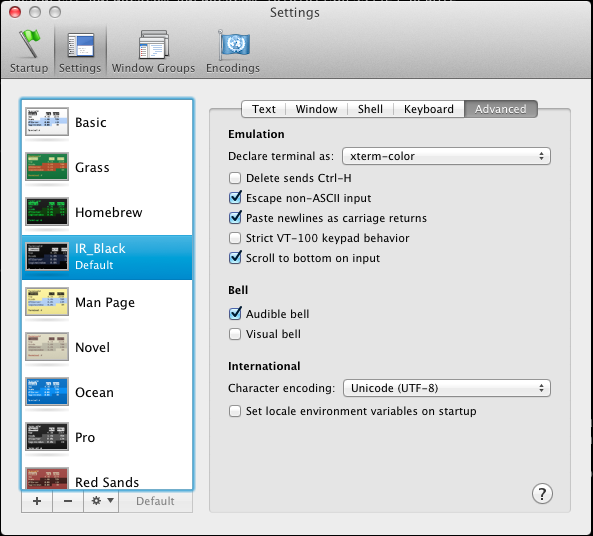
Notice the two errors at the top. I talked to a colleague about this and he suggested looking at the Terminal app settings. There I found a setting called “Set locale environment variables on startup” which was activated. The setting is located in Preferences | Settings | Advanced. I’ve unchecked the button now as you can see in this screenshot:

When closing the Terminal app, and reopening it again, I tried again:

server:~# locale
LANG=en_US.UTF-8
LC_CTYPE=”en_US.UTF-8″
LC_NUMERIC=”en_US.UTF-8″
LC_TIME=”en_US.UTF-8″
LC_COLLATE=”en_US.UTF-8″
LC_MONETARY=”en_US.UTF-8″
LC_MESSAGES=”en_US.UTF-8″
LC_PAPER=”en_US.UTF-8″
LC_NAME=”en_US.UTF-8″
LC_ADDRESS=”en_US.UTF-8″
LC_TELEPHONE=”en_US.UTF-8″
LC_MEASUREMENT=”en_US.UTF-8″
LC_IDENTIFICATION=”en_US.UTF-8″
LC_ALL=

No more errors! I tried restarting the pure-ftpd deamon from my Terminal app and it now works as expected. Even the warnings and errors when installing applications in Debian (apt-get) are gone. In fact, it seems this is the way it is supposed to work.

Glad I’ve fixed this 🙂

Update: As Reza mentions in the comments, it’s also possible to fix this problem on the server side. This is the best way to go if you want to fix this for your users. Thanks Reza!

After the leap second insert last night, my CloudStack 3.0 servers (or its Java processes actually) started to use a lot of CPU. Here’s how to fix it (sets the date):

date ; date -s "`date -u`" ; date

Just run this on your management- or compute node. On my CloudStack system it only occurred on the management servers. Confirmed: it occurred both on management- and compute nodes on our CloudStack system. No restart required afterwards . The load will drop immediately.

Note: restarting cloud-management alone does not fix the issue. Rebooting the machine does, however, but I’d prefer not to reboot them 🙂

MySQL seems to be affected as well, though I didn’t experience problems with it.  Thanks to the guys @Mozilla for blogging about this problem and suggesting a fix.

I’ve also posted this to the CloudStack forums,so there might be some discussion as well.