Archives For 30 November 1999

I’ve had some trouble when using the Mac OSX Terminal app for some time now. Until today, it just gave me some annoying warnings from time to time. Like when installing an application with apt-get in Debian:

perl: warning: Setting locale failed.
perl: warning: Please check that your locale settings:
LANGUAGE = (unset),
LC_ALL = (unset),
LC_CTYPE = “UTF-8”,
LANG = “en_US.UTF-8”
are supported and installed on your system.
perl: warning: Falling back to the standard locale (“C”).
locale: Cannot set LC_CTYPE to default locale: No such file or directory
locale: Cannot set LC_ALL to default locale: No such file or directory

It did work, so nothing too serious. I’ve also found applications, like iotop for example, that refuses to start when LC_ALL was unset. But a quick

EXPORT LC_ALL=$LANG

made the application start, so I didn’t take the time to investigate it further. Today I run into a more serious issue that cost me quite some time to figure out.

I had stopped the pure-ftpd deamon to do some maintenance and then started it again. It did start without error, but connecting failed:

server:~# ftp ftp.server.nl
Connected to ftp.server.nl.
perl: warning: Setting locale failed.
ftp>

Nothing had changed in the ftp configuration. After some debugging and trial & error, I found out that when I started the deamon from within a shell on Ubuntu it worked, but when I started it within a shell on my MacBook, it didn’t.

When looking at the locales I found:

server:~# locale
locale: Cannot set LC_CTYPE to default locale: No such file or directory
locale: Cannot set LC_ALL to default locale: No such file or directory
LANG=en_US.UTF-8
LC_CTYPE=UTF-8
LC_NUMERIC=”en_US.UTF-8″
LC_TIME=”en_US.UTF-8″
LC_COLLATE=”en_US.UTF-8″
LC_MONETARY=”en_US.UTF-8″
LC_MESSAGES=”en_US.UTF-8″
LC_PAPER=”en_US.UTF-8″
LC_NAME=”en_US.UTF-8″
LC_ADDRESS=”en_US.UTF-8″
LC_TELEPHONE=”en_US.UTF-8″
LC_MEASUREMENT=”en_US.UTF-8″
LC_IDENTIFICATION=”en_US.UTF-8″
LC_ALL=

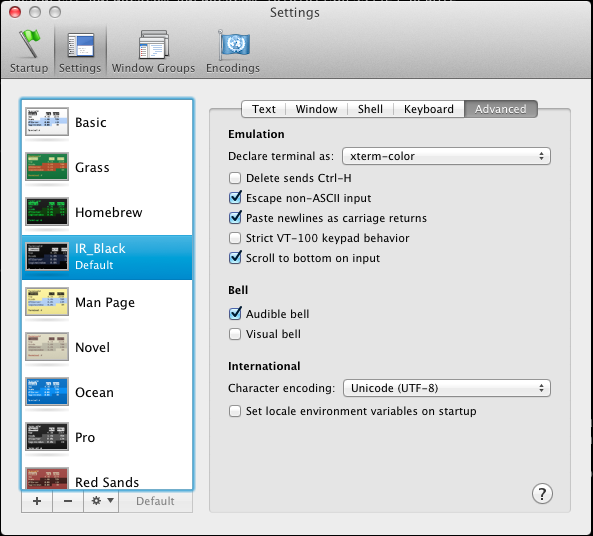
Notice the two errors at the top. I talked to a colleague about this and he suggested looking at the Terminal app settings. There I found a setting called “Set locale environment variables on startup” which was activated. The setting is located in Preferences | Settings | Advanced. I’ve unchecked the button now as you can see in this screenshot:
When closing the Terminal app, and reopening it again, I tried again:

server:~# locale
LANG=en_US.UTF-8
LC_CTYPE=”en_US.UTF-8″
LC_NUMERIC=”en_US.UTF-8″
LC_TIME=”en_US.UTF-8″
LC_COLLATE=”en_US.UTF-8″
LC_MONETARY=”en_US.UTF-8″
LC_MESSAGES=”en_US.UTF-8″
LC_PAPER=”en_US.UTF-8″
LC_NAME=”en_US.UTF-8″
LC_ADDRESS=”en_US.UTF-8″
LC_TELEPHONE=”en_US.UTF-8″
LC_MEASUREMENT=”en_US.UTF-8″
LC_IDENTIFICATION=”en_US.UTF-8″
LC_ALL=

No more errors! I tried restarting the pure-ftpd deamon from my Terminal app and it now works as expected. Even the warnings and errors when installing applications in Debian (apt-get) are gone. In fact, it seems this is the way it is supposed to work.

Glad I’ve fixed this 🙂

Update: As Reza mentions in the comments, it’s also possible to fix this problem on the server side. This is the best way to go if you want to fix this for your users. Thanks Reza!


After many weeks of preparation we moved MD’s equipment from the EUNetworks datacenter in Amsterdam, to Gyrocenter DC-2. This is also our new datacenter where we’ve built a CloudStack cloud.

Most servers were virtualized before this migration and only had to be removed during this operation. Others will be virtualized in the coming months. Fortunately most services had only some downtime during the night.

We also moved MD’s backup location (Redbus) and integrated it with our equipment in Global Switch.

As you can see, our Team of 5 worked very hard. Enjoy this video impression!

After the leap second insert last night, my CloudStack 3.0 servers (or its Java processes actually) started to use a lot of CPU. Here’s how to fix it (sets the date):

date ; date -s "`date -u`" ; date

Just run this on your management- or compute node. On my CloudStack system it only occurred on the management servers. Confirmed: it occurred both on management- and compute nodes on our CloudStack system. No restart required afterwards . The load will drop immediately.

Note: restarting cloud-management alone does not fix the issue. Rebooting the machine does, however, but I’d prefer not to reboot them 🙂

MySQL seems to be affected as well, though I didn’t experience problems with it.  Thanks to the guys @Mozilla for blogging about this problem and suggesting a fix.

I’ve also posted this to the CloudStack forums,so there might be some discussion as well.

I’m running Keepalived on our loadbalancers for many years and I’m really happy with it. Today I run into an issue that took me some time to solve. I thought I’d share it 🙂

In my current setup I have a pair of Debian Squeeze boxes running version 1.1.20. Since I’m rolling out ipv6 at the moment, I need to upgrade to 1.2.2. Fortunately, Debian provides this version in Squeeze-Backports.

So, I decided to upgrade the Backup loadbalancer first (lb-1). It was a simple ‘apt-get’ procedure to get it installed. But soon these errors popped up in my syslog:

Jun 16 21:12:25 lb-1 Keepalived_vrrp: bogus VRRP packet received on bond1 !!!
Jun 16 21:12:25 lb-1 Keepalived_vrrp: VRRP_Instance(CLOUD_MGT_GW) ignoring received advertisment...
Jun 16 21:12:25 lb-1 Keepalived_vrrp: receive an invalid passwd!

No messages were to be found in the primary loadbalancer, lb-0. The two loadbalancers weren’t talking to each other any more. I did’t try a failover, as this apparently wouldn’t work. To be sure, I stopped keepalived on the lb-1.

Using tcpdump I found the problem: version 1.1.20 uses a password in its broadcast advertisement that was truncated to the first 7 characters, while the version 1.2.2 uses the full length password, as configured in /etc/keepalived/keepalived.conf. This of course did not match, and so they refused to talk to each other.

The solution was simple: I changed the password in the version 1.2.2 loadbalancer, to be 7 characters long. Then restarted keepalived, and all was working again. After upgrading both loadbalancers, I changed back the password to the longer version and since the versions are now both 1.2.2 it still worked 🙂

When you mix architectures (or are moving from 32bit to 64bit like me) and use RRDtool for statistics, you might run into this problem:

ERROR: This RRD was created on another architecture

You can solve this, to dump the RRD file on the server that created it to XML, like this:

rrdtool dump stats.rrd > stats.xml

Then transfer it to the new server, and convert it back to RRD:

rrdtool restore -f stats.xml stats.rrd

The  other server can now read the file. You can test it with the info command:

rrdtool info stats.rrd

Hope this helps someone!

PS: If you want to convert a whole directory to XML, use this little bash oneliner I created for this job:

for f in *.rrd; do rrdtool dump ${f} > ${f}.xml; done