
When building new computer infrastructure, I find it important to label and document everything properly. This will help you in an emergency, especially if you are not on site and need to instruct someone on the phone. Apart from that, todays infrastructure is quite complex and one cannot remember everything by head. This blog post describes what we used when building our Cloud infrastructure.

First of all, use a separate cable color for each type of connection. We used, for example, different colors for ‘storage’, ‘management’, ‘serial’ and ‘public’ traffic types. This gives a quick overview of the different cables that are in use. Make sure colors are unique, so don’t use black if you’re using black power cables.

The color of the cable is the first distinction, to be even more specific we’ll label every cable as well. Most sys admins know that labeling cables in a data center is not as easy as it seems: the heat and ventilation will eventually make the labels fall off. With this in mind we’re looking for a solution.. Brady BMP21 to the rescue!
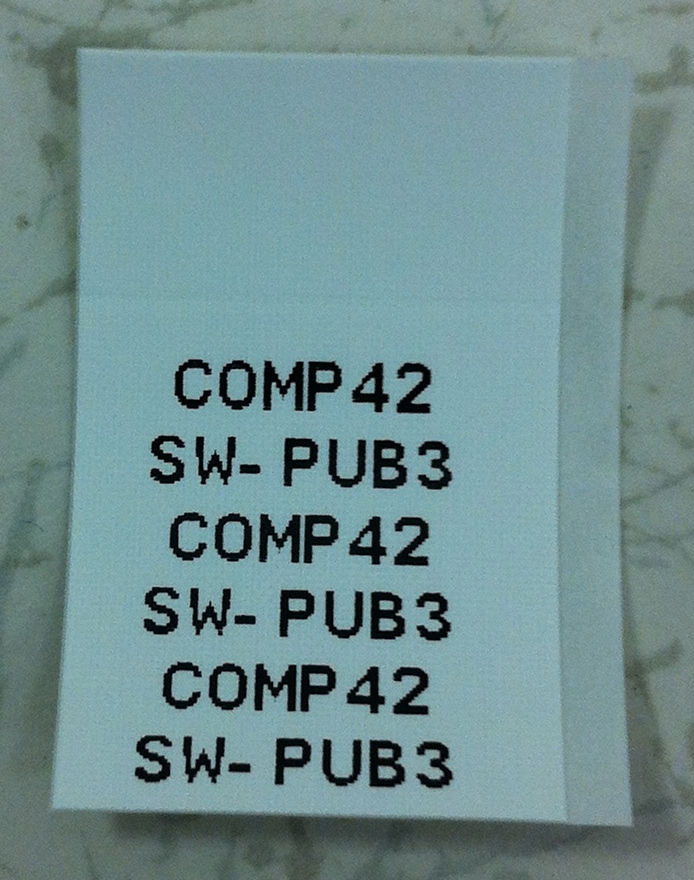
The BMP21 has a keyboard and let’s you enter any description you want. When printing, it produces a label that you can wrap around the cable. This way, the label is very solid connected to the cable and will not fall off.

As you can see in the image, it prints the two lines entered on the Brady multiple times. You can wrap the label around the cable and read what’s on it very easy. This also means you won’t have to pull off the cable to be able to read its label. Smart thinking!

An example of cables we labelled with the BMP21
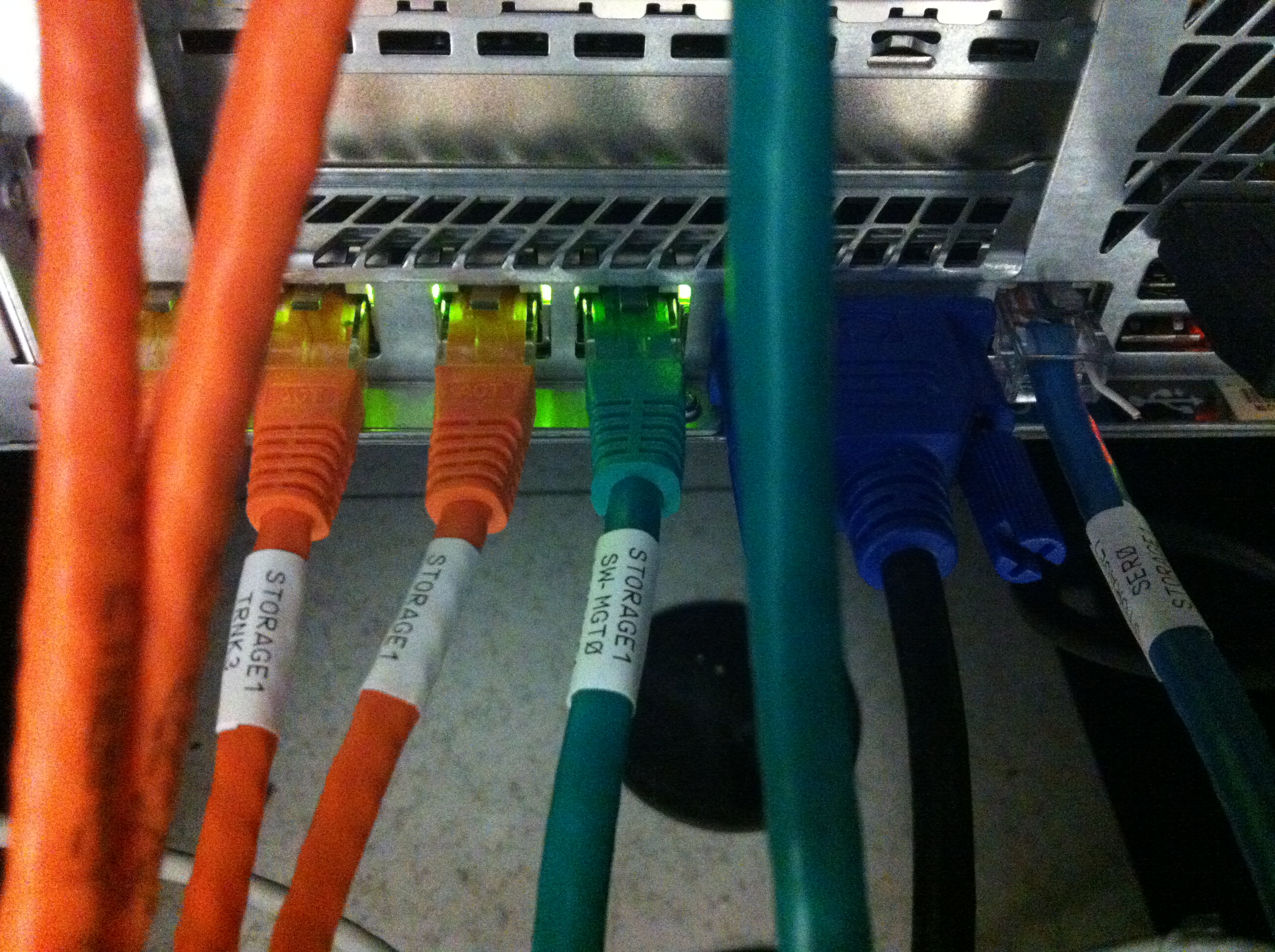
As you can see it works very well and looks pretty good as well. I’m really satisfied with the device and the labels it produces!


Changes to production systems should be tested on a development system and then be deployed using configuration management (such as Puppet), if you ask me. Sometimes I first run commands by hand (on a test system) to find out the right ones, the right order, etc. In those cases I find it useful to automatically document what I type and be able to ‘replay’ it later on.

Why? Because when I write the Puppet configuration needed to deploy the change, I want to be sure all manual commands I ran make it to the Puppet manifest. Being able to replay what I did allows me to do so with ease.

Here’s how to record your key strokes using the ‘script’ Linux utility:

script change1234.script -t 2> change1234.timing

The ‘script’ utility logs all commands you enter to the file ‘change1234.script’. Furthermore it saves the timing data to a file called ‘change1234.timing’. Beware that everything is saved, including errors and typo’s.

The timing data allows to replay the script using the same timing as when the session was recorded. It gives a good representation of what happened. To replay, simply run:

scriptreplay change1234.timing change1234.script

You can replay it as many times as you like.

The .script and .timing files are just plain text files. This means you can ‘grep’ them to quickly find commands. For example, to display the ‘sed’ commands you used:

grep sed change1234.script

As you can see, saving (and documenting) your commands is easy and offers some nice features. It even allows you to forget what exactly you did… 😉

It just came to my attention that a vulnerability in Apache CloudStack was discovered, as John Kinsella writes in his post to the Apache CloudStack dev-mailinglist.

A malicious user could, for example, delete all VMs in the system. Addressing this issue is especially important for anybody using CloudStack in a public environment.

The vulnerability report has an easy work-around that I will mention here as well:

mysql -p -u cloud -h mgt-server-ip
update cloud.user set password=RAND() where id=1;
\q

Hugo Trippaers of Schuberg Philis discovered this issue. Thanks for sharing!

One-liners are always fun. Linux has pipes, streams and redirects which you can combine to do many things in just one line. Today I had to restore a MySQL backup that was gzipped. Instead of typing:

gunzip db-backup.sql.gz
mysql -p -h db.example.com dbname < db-backup.sql

You can type this instead:

gunzip < db-backup.sql.gz | mysql -p -h db.example.com dbname

The .sql.gz file is input to gunzip, the resulting (unzipped) data is piped to mysql and is used as input there.

It will preserve the .gz file and saves diskspace as the unzipped file is not saved to disk. When using big databases, this is also a time saver. When using two commands you have to wait for the file to unzip, before starting the actual import. No intervention is needed when using the one-liner.

Today I run into an issue with MySQL replication that prevented updates from the master to appear on the slaves. When checking the slave status, MySQL reports:

Slave_IO_State: Waiting for master to send event
Slave_IO_Running: Yes
Slave_SQL_Running: No
Last_Error: Query caused different errors on master and slave.

Apparently, an error occurred on the master (like a query that was wrong) and that failed on the slave as well. But since the error messages differ (a bit) the replication was stuck on this query. Manual intervention is required to tell MySQL what to do next.

This is what I used to fix it:

mysql -p
STOP SLAVE;
SET GLOBAL SQL_SLAVE_SKIP_COUNTER = 1;
START SLAVE;

I logged in into MySQL (line 1), stopped the slave thread (line 2), skipped the one faulty query (line 3) and started the slave thread again (final line). The status now reports both a running IO and SQL thread.

mysql> show slave status\G

Output:

 Slave_IO_State: Waiting for master to send event
 Slave_IO_Running: Yes
 Slave_SQL_Running: Yes