OpenVPN is a very powerful tool to connect to a remote network in a secure and easy way. But while it’s quite easy to set it up (see my post about OpenVPN on Raspberry Pi), getting all the pieces together takes some more network understanding and configuration. I created an image to show what’s going on when a OpenVPN client connects to the server.
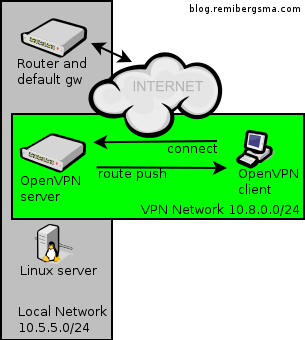
OpenVPN networking

The grey network is the local network you’re connecting to, the green network is created by OpenVPN. After a successful connection, the OpenVPN server can ‘push’ a route to the OpenVPN client to make it aware of the grey network that is available through the OpenVPN connection. In this case you’d add this setting to the OpenVPN server:

push "route 10.5.5.0 255.255.255.0"

Now that the OpenVPN client knows how to find the Linux server on the grey network, it should be working, right? Nope. The Linux server does not know about the green network. So, when a OpenVPN client connects with a 10.8.0.x ip-address, this server does not know where to send the response to. When this happens, the Linux server sends its traffic to the default gateway of the local network: the router of the grey network.

But unfortunately, the router does not know about the green network neither. Since 10.8.0.x is a non-routable address (RFC 1918), it drops the packets because it has no way of knowing where to find this private network. To the OpenVPN client, this may look like there’s something wrong with the VPN connection, because even a simple ping will not work and times out. In reality, this is a routing problem.

The solution? Make the Linux server or at least the router aware of the green network, and tell them where to send traffic to this network. This is done by adding a route like this:

route add -net 10.8.0.0/24 gw 10.5.5.5

Assuming the local network ip-address of the OpenVPN server is 10.5.5.5.

This way the hosts in the grey network know about the green network and send their traffic to the OpenVPN server. Of course the OpenVPN server knows how to reach the OpenVPN client and all is working!

You can extend this further and add routes to the network of the VPN client and make hosts on both networks communicate to each other. This is useful for example to connect a branch-office to the corporate network. I’ll write about this in more detail some other time.

Hopefully this post brings some insight in what goes on when using networks and VPN connections.

Someone asked me if it were possible to download a web site and make it available offline. To some extend, this can be done. Interactive forms will not work (searching, ordering, etc), but you can use ‘wget‘ to transform a website into a static version.

It goes like this:

wget \
 --recursive \
 --no-clobber \
 --page-requisites \
 --html-extension \
 --convert-links \
 --restrict-file-names=windows \
 --domains example.org \
 --no-parent \
 --wait=1 \
 --limit-rate=500K \
 example.org/

Let me explain:
The ‘–recursive’ option downloads the entire web site and ‘–domains’ tells wget not to follow links outside example.org. Otherwise you will download far too many pages. ‘–page-requisites’ makes sure we’ll get all the elements that compose the page (images, CSS, etc), ‘–html-extension’ saves files with the .html extension so they will work on a stand-alone pc, ‘–convert-links’ converts links so they’ll work off-line and ‘–no-clobber’ prevents any existing files to be overwritten

Using a ‘–limit-rate’ you can prevent wget from using all available bandwidth. Wile downloading will take longer, it is now possible to browse the web while wget is downloading.

Give it a try, it works pretty nice and is great if you’re about to make big changes to your site and you want to save a copy of the old version.

The Raspberry Pi is a $35 credit-card sized computer, with an ARM-based CPU. It uses very little power (only 3 Watt), so it’s ideal for a server that’s always-on. I was thinking what’d be a nice task for my Raspberry Pi and came up with an OpenVPN server. This enables me to connect to my home from anywhere, for example to access some files or to access the internet from there.

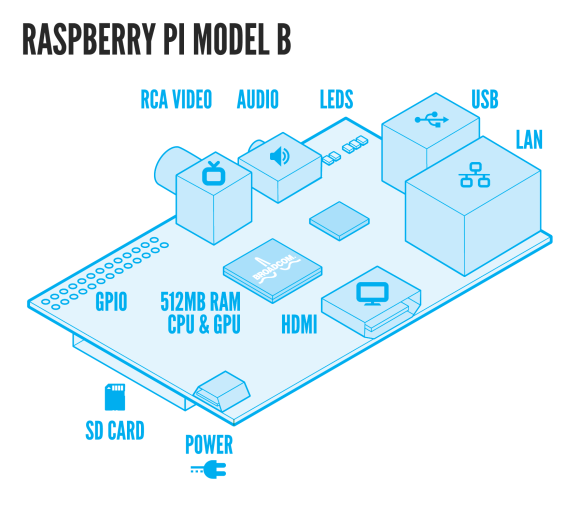
Before we start, Let’s have a look what’s on board the Raspberry Pi so you’ve an idea what we talk about:

RaspiModelB

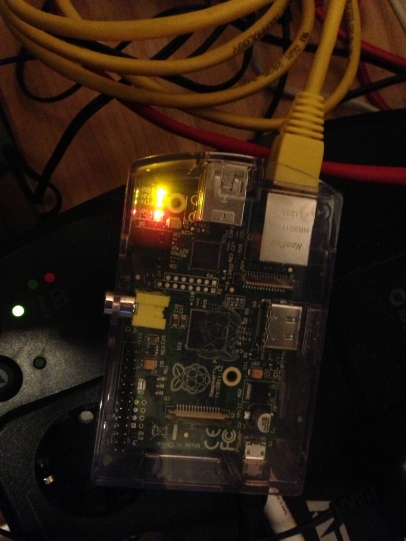
Here’s mine in action:

RaspberryPi

Now, let’s see how we can turn it into a OpenVPN server. Actually this is very easy due to the fact that the Raspberry Pi is running (a modified) Debian Weezy called Raspbian. Since it’s Debian, you can use apt-get to install software:

apt-get install openvpn

After the install finishes, you need to generate keys for the server and the client(s). OpenVPN ships with the ‘easy-rsa’-tool. It’s easiest to copy the example folder and work from there.

cp -R /usr/share/doc/openvpn/examples/easy-rsa /etc/openvpn
cd /etc/openvpn/easy-rsa/2.0

The ‘easy-rsa’-tool has a file called ‘vars’ that you can edit to set some defaults. That will save you time later on but it’s not required to do so.

Load the vars like this (note the two dots):

. ./vars

Then we need to generate keys:

./clean-all
./build-ca
./build-key-server server
./build-key client-name
./build-dh

The first line makes sure we start from scratch. The second generates a key for the Certificate Authority. The key for the server itself is generated on the third line. Repeat the forth line for each client that needs to connect. Finally, we need the Diffie Hellman key as well, which is generated on the fifth line. Make sure you use a 2048 bit key, as suggested in the comments.

We need to copy the keys to the OpenVPN folder.

cd /etc/openvpn/easy-rsa/2.0/keys
cp ca.crt ca.key dh2048.pem server.crt server.key /etc/openvpn

Last step is to configure the server. You can copy the example config and make sure it points to the certs you just created.

cp /usr/share/doc/openvpn/examples/sample-config-files/server.conf.gz /etc/openvpn
gunzip /etc/openvpn/server.conf.gz
vim /etc/openvpn/server.conf

When you’re done, start OpenVPN like this:

/etc/init.d/openvpn start

Response looks like:

[ ok ] Starting virtual private network daemon: server.

Verify it by running:

ifconfig tun0

You’ll see:

tun0 Link encap:UNSPEC HWaddr 00-00-00-00-00-00-00-00-00-00-00-00-00-00-00-00 
 inet addr:10.8.0.1 P-t-P:10.8.0.2 Mask:255.255.255.255
 UP POINTOPOINT RUNNING NOARP MULTICAST MTU:1500 Metric:1
 RX packets:49 errors:0 dropped:0 overruns:0 frame:0
 TX packets:16 errors:0 dropped:0 overruns:0 carrier:0
 collisions:0 txqueuelen:100 
 RX bytes:3772 (3.6 KiB) TX bytes:1212 (1.1 KiB)

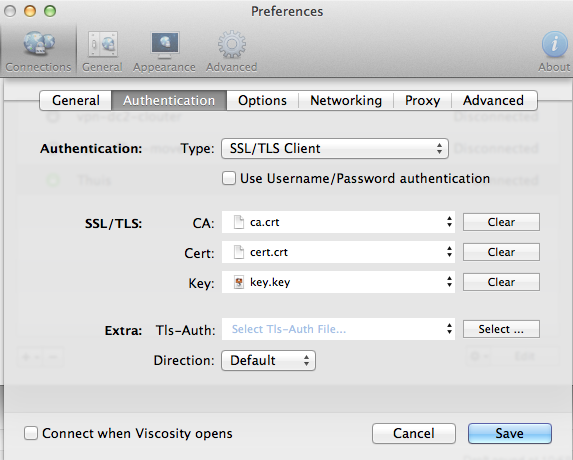
Now you should be able to connect to the OpenVPN server with a client. I’m using Viscosity on Mac OSX, but there’re many clients available on almost any platform (Windows, Mac OSX, Linux). You need the client.crt, client.key and ca.crt files plus the ip-address of your Raspberry Pi.

viscosity-vpn-config

Connecting should now work without trouble. Have a look at ‘/var/log/syslog’ to access the logfiles. You’d be able to see which client connects:

Jan 5 22:07:56 raspberrypi ovpn-server[14459]: 1.2.3.4:64805 [client-name] Peer Connection Initiated with [AF_INET]1.2.3.4:64805

Now that all is working, time for a last tip: when you want to access the network behind the Raspberry Pi through your OpenVPN connection, configure OpenVPN to push the right route to the clients. Edit the OpenVPN server config, and add a parameter like this:

push "route 10.1.7.0 255.255.255.0"

Be sure to enter the network- and netmask address that match your network setup. The route is automatically added on connect, and removed on disconnect.

Finally, enable routing on the Rasperry Pi:

echo 1 > /proc/sys/net/ipv4/conf/all/forwarding

Have fun with it, you can do a lot of great things with this little machine!

Update: Also see these follow-up posts that contain more detailed info on some interesting use cases and help you set it up:

HOWTO connect to hosts on a remote network using OpenVPN and some routing

Secure browsing via untrusted wifi networks using OpenVPN and the Raspberry Pi

The WordPress.com stats helper monkeys surprised me today with their 2012 annual report.

Here’s an excerpt:

My blog had 33,000 views in 2012. The busiest day of the year was September 4th with 644 views. The most popular post that day was How I replaced the CloudStack Virtual Router with my own physical Linux router that was featured on Linux Today.

Visitors came from 165 different countries.. wow! Most came from The United States, followed by The Netherlands and Germany. A lot of the visitors were searching on Google, some on Twitter, and found my blog that way.

Click here to see the complete report.

Thank you all and I wish you all the best in 2013!

See ya there 🙂

After passing my Bachelor of Computer Science I never took the time to take any specific Linux exam. But I’ve been working with Linux for about 14 years, so I know a lot about it. Now that I started my new job this month, I thought it was also time to get Linux certified.

I’ve been given the opportunity to get some training from SUSE (which is the distribution we use at work), and I’m really happy about that. Yes, I do have a nice employer 🙂

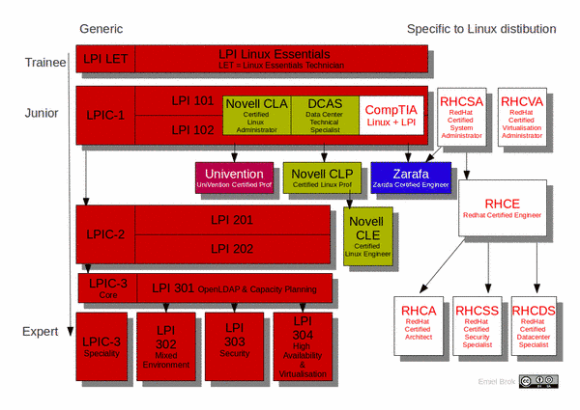
Let me tell you a bit about the different certification options for Linux. LPI is vendor neutral, whereas Red Hat and SUSE focus on their specific distributions of Linux. Still Linux, so the underlying knowledge is the same. The LPI Netherlands web site has a nice overview of all Linux certifications available (thanks!) that I’ve copied below:

linux_training_overview

lpic1_largeOne has to take the exams in the right order: start at the so called ‘Junior’-level, and work your way down. That’s why I decided to do some self-study and take the LPI-101 and LPI-102 exams to become LPIC-1 certified. I passed the first exam last week (730/800), and the second one today (700/800). As a bonus, I also received the Novell/SUSE Certified Linux Administrator (CLA) certificate. So this is a nice first step.

I’ll be taking the SUSE Certified Linux Professional (CLP) and SUSE Certified Linux Engineer (CLE) exams next month. Before that, I plan on doing some more self-study and take the LPIC-2 exams as well.

From what I’ve seen so far the LPI exams are nice and fill up some blanks in my knowledge. Especially LPIC-1 wasn’t too hard and I had fun going through the objectives. In fact, I already started looking at the LPI-201 exam and am looking forward to it. I come across most objectives in my day-to-day work; some more often than others of course. It’s nice to learn a new command or parameter and be able to use it from then on to do your job better. That is going forward!

I’ll keep you posted..