When you boot your Raspberry Pi with Raspbian, it will get its ip address from a DHCP server. Most tutorials I’ve seen, ask you to login to a ‘router’ (that serves as DHCP server as well) to find the assigned ip address. When you haven’t access to the DHCP server, how do you find the Pi’s ip address?
You should know the MAC address of a Raspberry Pi always has a ‘b8:27:eb’ prefix. Using a Linux utility called ‘arp-scan‘ you can discover MAC addresses and their corresponding ip addresses. Arp-scan sends ARP packets to hosts on the local network and displays any responses that are received.
First, install arp-scan:
apt-get install arp-scan
Then locate all Raspberry Pi’s on the local network using this command:
arp-scan --interface=eth0 --localnet | grep b8:27:eb
You will need to be root, or arp-scan must be SUID root, in order to run arp-scan, because the functions that it uses to read and write  packets require root privilege.
Result:
172.16.12.34 b8:27:eb:00:11:ab (Unknown)
Using the ip address, it is now possible to SSH into your Raspberry Pi:
ssh -l pi 172.16.12.34

Today I figured out how to automatically add new devices (in my case those are mostly virtual machines) to the Zenoss monitoring system. This used to be done by hand, but no more 🙂

To add a new device (for example a Linux server called server001), simply call:

curl -u apiUser:apiPass \
'http://zenoss-server:8080/zport/dmd/DeviceLoader? \
deviceName=server001&devicePath=/Server/Linux&\
loadDevice:method=1'

It’s wise to create a dedicated Zenoss user just for these API calls, but you may use any account that has sufficient permissions to perform the action you’re calling.

As an alternative you can also use the ‘zenbatchload‘ command. Although you can only add new devices, not edit existing ones.The RESTful API does have the possibility to edit an existing device.

Let’s set some properties to the server we’ve just added:

curl -u apiUser:apiPass \
'http://zenoss-server:8080/zport/dmd/Devices/Server/\
Linux/devices/server001/manage_editDevice?serialNumber=1234&\
tag=tagname&productionState=1000&\
groupPaths=Group1&groupPaths=Group2&priority=3&\
comments=Api%20Test%20Comment&systemPaths=/System\
&rackSlot=Virtual'

It took me some time to figure out all available attributes, although once I found some of them I was able to Google the full list with an explaination.

Attributes:

  • deviceName – the name or IP of the device. If its a name it must resolve in DNS
  • devicePath – the device class where the first “/” starts at “/Devices” like “/Server/Linux” the default is “/Discovered”
  • tag – the tag of the device@
  • serialNumber – the serial number of the device
  • zSnmpCommunity – snmp community to use during auto-discovery if none is given the list zSnmpCommunities will be used
  • zSnmpPort – snmp port to use default is 161
  • zSnmpVer – snmp version to use default v1 other valid values are v2
  • rackSlot – the rack slot of the device.
  • productionState – production state of the device default is 1000 (Production)
  • comments – any comments about the device
  • hwManufacturer – hardware manufacturer this must exist in the database before the device is added
  • hwProductName – hardware product this must exist in the manufacturer object specified
  • osManufacturer – OS manufacturer this must exist in the database before the device is added
  • osProductName – OS product this must exist in the manufacturer object specified
  • locationPath – path to the location of this device like “/Building/Floor” must exist before device is added
  • groupPaths – list of groups for this device multiple groups can be specified by repeating the attribute in the url
  • systemPaths – list of systems for this device multiple groups can be specified by repeating the attribute in the url
  • statusMonitors – list of status monitors (zenping) for this device default is “localhost”
  • performanceMonitor – performance monitor to use default is “localhost”
  • discoverProto – discovery protocol default is “snmp” other possible value is “none”

Finally, in case you wish to delete a device, that can be done as well:

curl -u apiUser:apiPass \
'http://zenoss-server:8080/zport/dmd/Devices/Server/Linux/\
devices/server001/deleteDevice'

Personally I prefer not to delete devices. I rather set the ‘productionState’ to ‘-1’ (Decommissioned) to keep the history in Zenoss.

These simple API calls make it possible to automatically add a new server to the monitoring, or sync information from another source. But you can use the API for gathering all sorts of data as well. For example the load-average:

curl -u apiUser:apiPass \
'http://zenoss-server:8080/zport/dmd/Devices/Server/Linux/\
devices/server001/getRRDValue?dsname=laLoadInt5_laLoadInt5'

Result:

2.0

If you want to start playing with it, have a look at the Zenoss API documentation.

Recently I was looking for a way to SSH from a network that blocked my outgoing SSH connection. I’d be nice to have a way around firewalls and be able to access your private Linux terminal. To be able to debug a problem from an remote location, for example.

A collegue suggested a tool called ‘Shell In A Box‘. Shell In A Box implements a web server that can export arbitrary command line tools to a web based terminal emulator using just JavaScript and CSS without any additional browser plugins. This means: connecting your browser via HTTPS to your own hosted Shell In A Box web site, and access a Linux terminal from there.

How cool is that? In this blog I’ll show you how to set it up in a secure way.

Building and installing Shell In A Box
I want to setup Shell In A Box on my Raspberry Pi. It’s a great device running Linux that has a very small energy consumption footprint. Ideal for an always-on device I’d say!

Since there is no package available, we’ve to compile our own. It’s best to get the sources from Github (original here), since the Github repository contains some patches and fixes for issues on Firefox.

These commands install the required dependencies, clone the Git repository and start building:

apt-get install git dpkg-dev debhelper autotools-dev libssl-dev libpam0g-dev zlib1g-dev libssl1.0.0 libpam0g openssl
git clone https://github.com/pythonanywhere/shellinabox_fork
cd shellinabox_fork
dpkg-buildpackage

During my first attempt, I ran into this problem:

dpkg-source -b shellinabox-2.14
dpkg-source: error: can't build with source format '3.0 (quilt)': no upstream tarball found at ../shellinabox_2.14.orig.tar.{bz2,gz,lzma,xz}
dpkg-buildpackage: error: dpkg-source -b shellinabox-2.14 gave error exit status 255

When grepping for ‘quilt’ I found a file called ‘/debian/source/format’. From what I can tell this does not do anything important, so I ended up deleting the file. Guess what, it now works.

rm ./debian/source/format

Build the package again, this should now succeed.

dpkg-buildpackage

This process will take some time (especially on the Raspberry Pi). Afterwards you’ll find the .deb file ready to be installed.

dpkg -i ../shellinabox_2.14-1_armhf.deb

I changed the configuration, to disallow the build-in SSL and to bind to localhost only. I did this because another web server will serve our terminal. I will explain in a minute.

vim /etc/default/shellinabox

And edit this line:

SHELLINABOX_ARGS="--no-beep -s /terminal:LOGIN --disable-ssl --localhost-only"

Finally, restart the deamon:

/etc/init.d/shellinabox restart

And check if all went well:

/etc/init.d/shellinabox status

You should see:

Shell In A Box Daemon is running

Another way to verify is to check the open ports:

netstat -ntl

You should see:

Active Internet connections (only servers)
Proto Recv-Q Send-Q Local Address Foreign Address State 
tcp 0 0 127.0.0.1:4200 0.0.0.0:* LISTEN


Setting up Lighttpd as a proxy

Shell In A Box runs on port 4200 by default. Although this can be changed to a more common 80 or even 443, this is not what I want. I decided to integrate it with another webserver, to be able to combine other services and use just one url (and one SSL certificate). Since the Raspberry Pi isn’t that powerful, I choose Lighttpd.

apt-get instal lighttpd
cd /etc/lighttpd/conf-enabled
ln -s ../conf-available/10-proxy.conf

This installs Lighttpd and enables Proxy support. Now add the Proxy config:

vim /etc/lighttpd/lighttpd.conf

And add:

proxy.server = (
 "/terminal" =>
  ( (
    "host" => "127.0.0.1",
    "port" => 4200
  ) )
)

Save and restart Lighttpd:

/etc/init.d/lighttpd restart

Connect to http://pi.example.org/terminal and your Shell In A Box terminal should appear.

Although this is cool already, we’re not quite there. No one will SSH on an unencrypted web page, right? So, we’ll configure an SSL certificate to enable encryption. For double safety, we’ll also set a username/password on the web page. One then needs to know this password to access the login promt, and needs a valid local username/password to really use the terminal.

Adding encryption with SSL
By using a HTTPS-url, our traffic is encrypted. Let’s generate a private key (and remove the passphrase):

openssl genrsa -des3 -out pi.example.org.key 2048
cp -pr pi.example.org.key pi.example.org.key.passwd
openssl rsa -in pi.example.org.key.passwd -out pi.example.org.key

If you do not remove the passphrase, you will need to type it every time you start the web server. To request a SSL-certificate, you need to supply a CSR (Certificate Signing Request) and send that to a SSL provider such as Thawte or Verisign.

openssl req -new -key pi.example.org.key -out pi.example.org.csr

To be able to continue now, let’s self-sign the certificate:

openssl x509 -in pi.example.org.csr -out pi.example.org.pem -req -signkey pi.example.org.key -days 365
cat pi.example.org.key >> pi.example.org.pem

A self-signed certificate will display a warning in our browser, but that’s ok for now. Once the real certificate comes back from our SSL provider, it’s easy to replace it. The warning will then disappear.

Time to tell Lighttpd about our certificate:

vim /etc/lighttpd/lighttpd.conf

Add these lines:

$SERVER["socket"] == "10.0.0.10:443" {
  ssl.engine = "enable"
  ssl.pemfile = "/etc/lighttpd/ssl/pi.example.org/pi.example.org.pem"
  server.name = "pi.example.org"
  server.document-root = "/home/lighttpd/pi.example.org/https"
  server.errorlog = "/var/log/lighttpd/pi.example.org_serror.log"
  accesslog.filename = "/var/log/lighttpd/pi.example.org_saccess.log"
}

And restart Lighttpd:

/etc/init.d/lighttpd restart

Now Shell In A Box should be available on: https://pi.example.org/terminal

Enhancing security by adding HTTP-auth
Since the /terminal page now makes an actual terminal available to web users, I added an extra password for security. You can use the ‘HTTP Auth’ method for this. It will pop up a message box that requires an valid username/password before the /terminal page is shown.

First enable the module:

cd /etc/lighttpd/conf-enabled
ln -s ../conf-available/05-auth.conf

Then extend the config of the virtual host config you created above. The final result should be:

$SERVER["socket"] == "10.0.0.10:443" {
  ssl.engine = "enable"
  ssl.pemfile = "/etc/lighttpd/ssl/pi.example.org/pi.example.org.pem"

  server.name = "pi.example.org"
  server.document-root = "/home/lighttpd/pi.example.org/https"
  server.errorlog = "/var/log/lighttpd/pi.example.org_serror.log"
  accesslog.filename = "/var/log/lighttpd/pi.example.org_saccess.log"

  auth.debug = 2
  auth.backend = "htpasswd"
  auth.backend.htpasswd.userfile = "/etc/lighttpd/shellinabox-htpasswd"

  auth.require = ( "/terminal/" =>
    (
      "method" => "basic",
      "realm" => "Password protected area",
      "require" => "user=remibergsma"
    )
  )
}

Reload Lighttpd to make the changes active:

/etc/init.d/lighttpd reload

To set a password:

apt-get install apache2-utils
htpasswd -c -m /etc/lighttpd/shellinabox-htpasswd remibergsma

You can enter multiple users, just remember to remove the ‘-c’ flag when adding more users, as this overwrites the current file.

When you visit https://pi.example.org/terminal you will need to enter a valid username and password, before the page loads.

The final result: SSH in a browser window!
You should now be able to use a terminal via your own protected webpage. It’s mostly like a real terminal/SSH session but from a browser. Wow 🙂
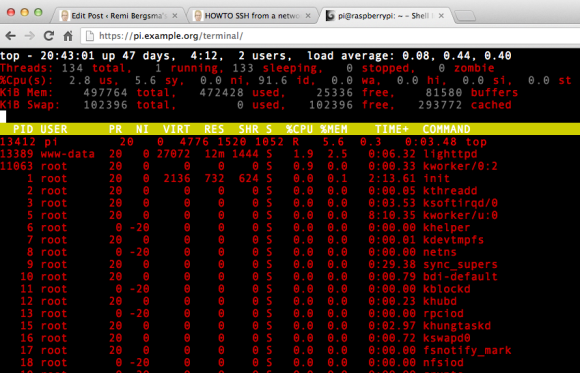
Shell In A Box in action

Shell In A Box in action


I always use GNU Screen, so I know for sure my commands keep running whatever happens.
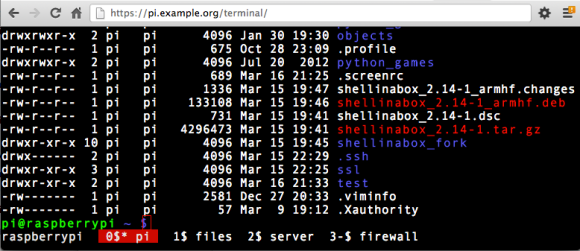
Using GNU Screen in a browser

Using GNU Screen in a browser
 

A lot of people seem interested in safe browsing over untrusted wifi and using a Raspberry Pi with an OpenVPN server to accomplish that. In this blog post, I’ll continue the series and explain how to set up secure browsing on mobile devices based on iOS.

When I’m not at home I use my iPhone or iPad and connect to the internet using either 3G or public wifi. I want to configure my mobile device to setup an encrypted VPN tunnel and route all traffic through it, so I have a safe browsing experience. Fortunately, there now is an OpenVPN app available on iOS that allows you to do that! Please install this app using the App Store, and continue reading to set it all up.

Preparing and importing the certificate
I’d suggest creating a separate certificate for each device you want to connect to your OpenVPN server. Although, it is possible to reuse the certificates on multiple devices, I’d recommend not to do so. First of all you will not be able to connect at the same time. Security-wise it is also smart to use one certificate for each device: whenever you lose your device, you can easily revoke the certificate and still connect from your other devices.

cd /etc/openvpn/easy-rsa/2.0/
. ./vars
./build-key remiiphone

You will now have a private key and certificate generated for your mobile device (check the ./keys directory). To be able to work with it on a mobiel device, we convert it to pkcs12 format using this command:

openssl pkcs12 -export -in keys/remiiphone.crt -inkey keys/remiiphone.key -certfile keys/ca.crt -name remiiphone -out remiiphone.p12

The password it asks is to protect the file. Remember the password, we will need it when installing on the mobile device. The file ‘remiiphone.p12’ should be created.

Next step is to bring this file to our mobile device. I did first scp it from the Pi to my iMac, then send myself an e-mail with the .p12 file attached. Since the file is password protected, it is safe to e-mail.

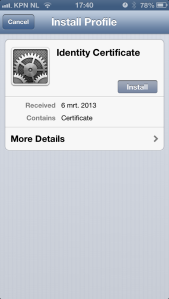
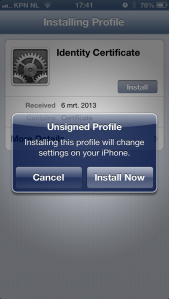
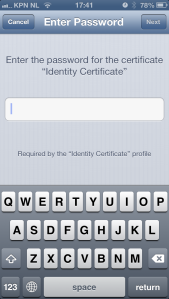
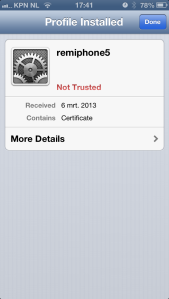
When you open the e-mail on your mobile device, and click the .p12 attachment you will be asked to install the certificate. Click install and confirm installation. If your device has a passcode, you will be asked to enter it. Afterwards, you need to type the password you choose when generating the p12 file. Finally, because I use a self-signed certificate, from an untrusted CA, iOS mentions the certificate is ‘Not Trusted’. Don’t worry, it’s fine.

The screenshots below show you how it looks like:

Installing the p12 certificate

Installing the p12 certificate

Unsigned profile warning

Unsigned profile warning

Enter device code

Enter device code

Enter password

Enter password

Installed certificate

Installed certificate

Your certificate is now installed on iOS and it is ready to be used by the OpenVPN app.

Preparing and importing the OpenVPN configuration file
Next step is to provide the OpenVPN app with a configuration file. When you use the .ovpn extension, you can easily import it later on. But let’s start with setting up the configuration file.

client
dev tun
proto udp
remote pi.example.org 1194
comp-lzo
redirect-gateway
<ca>
-----BEGIN CERTIFICATE-----
...
q0c4PYC3BB7pIOA2fH7Clkb8TduDcz0kzPqStD3mVjLXx1+KVxVeGMgbj0QLbPoG
...
-----END CERTIFICATE-----
</ca>
# other options (mostly defaults)
nobind
persist-key
persist-tun
user nobody
group nogroup
resolv-retry infinite

Let me explain: This tells the OpenVPN app we’ll be using client mode and use the ‘tun’ device (the only supported in iOS). The server is using udp (choose udp or tcp) and can be found on pi.example.org using port 1194. Please adjust accordingly. Line 5 tells it to use compression, and line 6 sends all traffic through the tunnel. This is exactly what we want: this allows secure browsing.

The thing that took me some time to figure out is that you need to specify the CA certificate in the OpenVPN app. Even though it was included in the .p12 file we imported, iOS would strip it and therefore not import it. That’s why you should include it in your .ovpn file. Replace lines 8-12 with your CA certificate. It needs more lines, for sure. Just paste everything between the CA tags in the file and you’ll be fine. If you’ll get this error message, your CA is probably not right:

CORE_ERROR PolarSSL: error parsing ca certificate : X509 - The certificate format is invalid, e.g. different type expected [ERR]

Finally, I have some more settings in the file that are mostly defaults. Note: it is also possible to add your private key and certificate directly to the .ovpn file, in the same way as the CA is done above. I’d recommend not to do that because your .ovpn file is then all somebody needs to be able to connect. Since there is no password protection, e-mailing the file is insecure and dangerous!

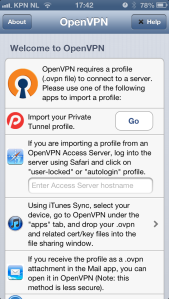
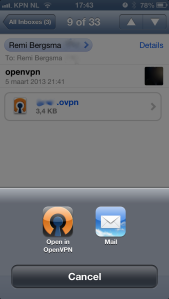
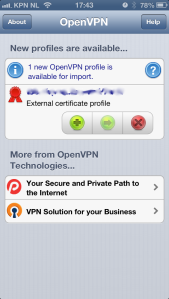
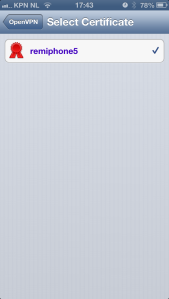
Save the file, call it pi.ovpn or so, and e-mail this file to yourself as well. The e-mail app on iOS will allow you to import this configuration to the OpenVPN app by clicking on the file. The OpenVPN app will show your imported configuration. Confirm by tapping the  green + icon. Next step, select the certificate to use with this profile. Here you will select the certificate we imported into iOS in the previous step. As a result, we can omit the username and password fields, as we use our certificate instead.

Welcome screen

Welcome screen

Import .ovpn file

Import .ovpn file

Confirm import

Confirm import

Select certificate

Select certificate

Configuration imported

Configuration imported

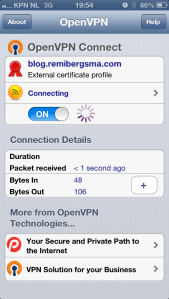
Connecting..
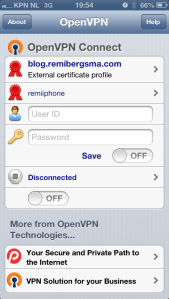
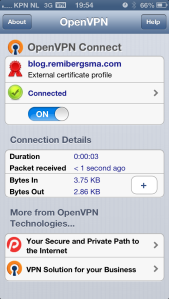
Your OpenVPN client configuration is now imported and ready for use. Let’s test it!  All you have to do to connect, is to tap on the OFF button just below the status ‘Disconnected’. You should now be connected to your OpenVPN server. Note the VPN icon on top of the screen while you’re connected.

The best way to verify everything is working properly, is to open your mobile Safari and visit a website that displays your ip address (such as ifconfig.me). It should show your OpenVPN server’s public ip address, instead of your mobile or wifi ip address. Try disconnecting and compare the ip addresses. Cool hah?!

Connecting

Connecting

Connected

Connected!

openvpnOpenVPN is great, it allows for easy access in a secure way. But how do you keep it secure? I mean, what if someone leaves your company? Do you disable access to the OpenVPN server? You should! In this blog I’ll show you how to do it.

A feature called revoking exists in OpenVPN. Revoking a certificate means to invalidate a previously signed certificate so that it can no longer be used for authentication purposes. For this to work, we need to tell the OpenVPN server which certificates are no longer valid.

All connecting clients will then have their client certificates verified against the so-called CRL (Certificate Revoking List). Any positive match will result in the connection being dropped. Your former employees will no longer have access, even if they still have their certificates.

Creating a certificate to test with
Before we start, let’s generate a dummy certificate for testing purposes:

cd /etc/openvpn/easy-rsa/2.0/
 . ./vars
./build-key unwanted-client-name

Verify you can connect to the OpenVPN server using this certificate. Refer to my earlier post for more info. Now that this works, I’ll show you how to revoke this certificate so you will no longer be able to connect.

Revoking a certificate
To revoke a certificate, we’ll use the ‘easy-rsa’ toolset.

cd /etc/openvpn/easy-rsa/2.0

If it’s not there, look at the OpenVPN examples and copy it:

cp -R /usr/share/doc/openvpn/examples/easy-rsa /etc/openvpn
cd /etc/openvpn/easy-rsa/2.0

Run this command to revoke the certificate called ‘unwanted-client-name’:

./revoke-all unwanted-client-name

You should see output similar to this:

Using configuration from /etc/openvpn/easy-rsa/2.0/openssl-1.0.0.cnf
Revoking Certificate 03.
Data Base Updated
Using configuration from /etc/openvpn/easy-rsa/2.0/openssl-1.0.0.cnf
unwanted-client-name.crt: C = NL, ST = ZH, L = City, O = Name, OU = pi.example.org, CN = unwanted-client-name, name = unwanted-client-name], emailAddress = [email protected]
error 23 at 0 depth lookup:certificate revoked

Note the “error 23” in the last line. That is what you want to see, as it indicates that a certificate verification of the revoked certificate failed.

The index.txt file on keys directory will be updated. You’ll see an ‘R’ (for Revoked) on the first column from the left for your user when you run this:

cat keys/index.txt

You can also examine the CRL to see what’s in there:

openssl crl -in keys/crl.pem -text

Now copy the crl.pem file to the OpenVPN config directory:

cp keys/crl.pem /etc/openvpn/

Whenever you revoke a certificate, you’ve to copy it to the OpenVPN server.
Note: The CRL file is not secret, and should be made world-readable so that the OpenVPN daemon can read it after root privileges have been dropped.

Enable revoking support
Before it works, we need to setup the OpenVPN server to add support for revoking certificates. You’ve to do this only once.

Add the folowing line to the OpenVPN server config:

vim /etc/openvpn/server.conf
crl-verify /etc/openvpn/crl.pem

Reload the OpenVPN server to activate the revoke setting:

/etc/init.d/openvpn reload

Testing the revoked certificate
The final test: try to login again using the ‘unwanted-client-name’ certificate. It will not work anymore!

By revoking users, you disallow access to your OpenVPN server for users that previously had access. This should be done as soon as an user no longer needs access, as it is an important security feature.