Archives For 30 November 1999

Just a quick instruction on howto restore an OpenLDAP server using a ‘ldif’-backup-file:

1. Setup the server

2. Configure the ‘slapd’ package, be sure to use the right database name. It’s a bit confusing: you enter it as ldaptree.company.com, but this will be used to create an empty database. Make sure it matches your backup ldif structure.

3. Make sure OpenLDAP is stopped

4. Read the backupdata into the OpenLDAP database using slapadd program

slapadd -c -l backup.ldif

The -c continues on errors, which might be necessary for example because the ‘root’ is already created. You can also run without it, and fix any errors by hand in the backup.ldif file. -l specifies the file to read from.

5. Fix permissions, make sure ‘openldap’ is both user/group owner

6. Start OpenLDAP and the server should be up & running again!

Perl processes that got stock kept me from sleep last night. I’m not sure what happened, but probably they were waiting for the database that reached a max_connections limit for this particular user. When Apache reached its max processes, monitoring paged me. Fortunately this is all running in a cluster, so no service was interrupted.

A few days ago I found myself killing Apache processes from a user that created an endless loop. Also, some scripts our users upload generate a lot of load (which is ok for a while, but not too long). So I thought I’d write something in bash to help me with all this 🙂

The script below is what I’ve come up with so far and it seems to work pretty well. What it does, is allowing user processes to run for 10 minutes and then kick in and kill the process if it’s still there.

Apache processes are running as the owner of the account (using mod_ruid) so I can actually see to what user the Apache processes belong. Perl, of course, is also run as the account user. Making use of this is the base idea of the script. Sample ‘ps aux’:

user1        24891  1.1  1.8 112132 61000 ?        S    18:54   0:02 /usr/sbin/apache2 -k start
www-data     24894  0.1  0.8  82624 30240 ?        S    18:54   0:00 /usr/sbin/apache2 -k start
user2        24900  0.2  0.9  82984 31552 ?        S    18:54   0:00 /usr/sbin/apache2 -k start
www-data     25201  4.8  1.2  95540 43296 ?        S    18:57   0:00 /usr/sbin/apache2 -k start
www-data     25202  1.0  0.8  82972 30016 ?        S    18:57   0:00 /usr/sbin/apache2 -k start
user2        25213  6.0  0.1   8992  5692 ?        S    18:57   0:00 /usr/local/bin/perl -- /var/www/site.com/HTML/script.cgi

For safety, I ignore FTP (pure-ftp in my case) and SSH processes. And of course only UID’s from 1000 and up are taken into account. So the ‘www-data’ processes never gets killed’; ‘user1’ and ‘user2’ processes will be killed when they do not complete within 10 minutes.

#!/bin/bash

# 2012-03-04, remi: Kill processes from users (id 1000 and up) that have been running for more than 600 seconds
# For safety, I exclude some processes that users might run that are OK (ftp,ssh,etc)
#
# get processes
ps -eo uid,pid,cmd:9,lstart --no-heading |
    tail -n+2 |
    # we never want to kill pure-ftp
    grep -v "pure-ftpd" |
    #  nor sshd
    grep -v "sshd" |
    #  nor bash
    grep -v "bash" |
    # ignore all sbin processes, incl Apache
    grep -v "/usr/sbin" |
    # loop remaining processes
    while read PROC_UID PROC_PID PROC_CMD PROC_LSTART; do
        # only interested in user processes, so ignore system processes
        if [ $PROC_UID -ge 1000 ]; then
                # how long is this process running?
                SECONDS=$[$(date +%s) - $(date -d"$PROC_LSTART" +%s)]
                # 600 seconds should be more than enough
                if [ $SECONDS -gt 600 ]; then
                        # now, output pid's to be killed on the final line of this script
                        echo $PROC_PID
                        # do save log for debugging
                        cat /proc/$PROC_PID/cmdline >> /var/log/killed.log 2>&1
                        echo ", details: " >> /var/log/killed.log
                        date >> /var/log/killed.log
                        ls -la /proc/$PROC_PID/ >> /var/log/killed.log 2>&1
                fi
        fi
     done |
     # finally, kill them!
     xargs kill

Problems occur when the ‘cmd’ argument has spaces. Since the script delimiters its parameters by spaces also, a syntax error occurs. I worked around that by limiting the output to only 9 characters ‘cmd:9’. In my specific case that did the trick but I’d like to know if there’s a better way to handle it 🙂

Just run this script from cron every minute:

* * * * *  /usr/local/bin/killSlowUserProcesses.sh > /dev/null 2>&1

I hope this will bring me a good night’s sleep tonight 😉

Update: I’ve disabled killing of Apache processes since mod_ruid switches users around including back/forth to www-data. The process might be running for some time, it is not certain the current user has been running it all the time. I need to think about this one for some more time 😉 Updated the above script, added this line:

    grep -v "/usr/sbin" |

Good news today when I came home from the office: CloudStack 3.0 stable has been released! I’d really been looking forward to this, because we’ll be using it in a big cloud project at work. With this release, we can finalize our cloud design and proof-of-concept setup. More about that later.

Thanks to the CloudStack team for this great release! 🙂

Sometimes you need an easy way to redirect incoming connections to another system. For example when migrating an old box to a new one. Today I came across an old note from myself explaining this. I thought it might be worth sharing 🙂

You’ll need the ‘redir’ program for this to work:

apt-get install redir

Redir redirects tcp connections coming in to a local port to a specified address/port combination like this:

redir –laddr=10.10.0.1 –lport=80 –caddr=10.10.10.1 –cport=80

This redirects web requests coming in at 10.10.0.1 to 10.10.10.1.

redir –laddr=10.10.0.1 –lport=21 –caddr=10.10.10.1 –cport=21 –ftp=both

And here the same for ftp. Note the –ftp option, this makes sure both passive and active ftp work.

Many years ago, when I didn’t know about this option, I had to rollback an upgrade in the middle of the night, because ftp redirection just didn’t work.. all I had to do was add –ftp=both to redir. I found it out the next morning, and did the upgrade again the following night. I’ll never forget! Just had to smile when I found the note today 🙂

For a Cloud project at work, I made some screenshots of CloudStack to show our management. They wanted to know what an end-user will see in CloudStack 3.0. This is CloudStack from an end-user’s point-of-view:

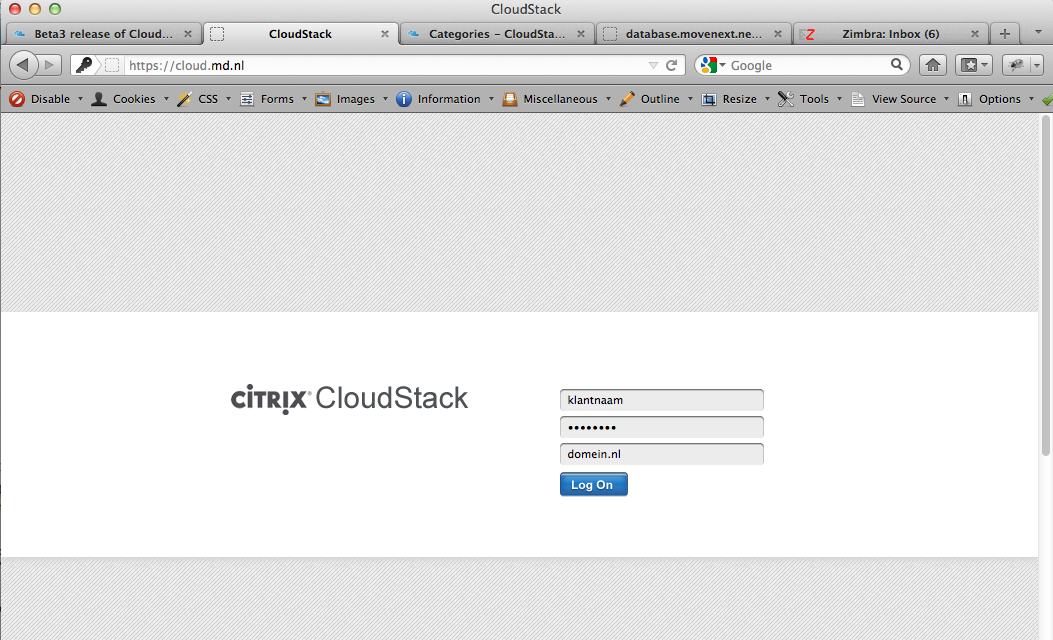
The login screen is where it all starts..

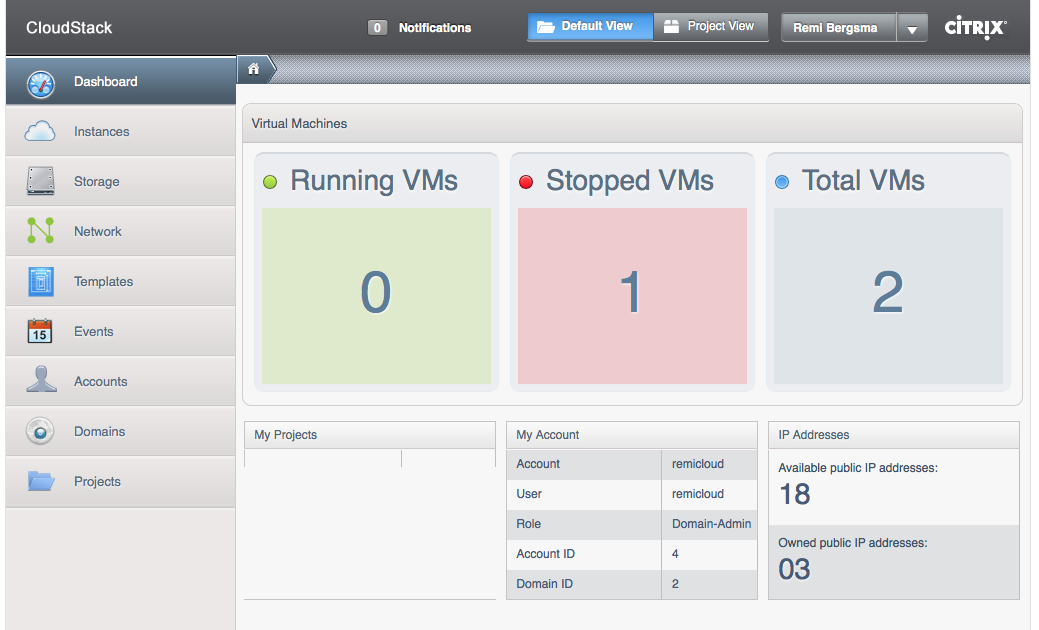
After logging in, users are presented with a Dashboard. Here is a nice and clear overview of what VM’s are running and stopped. As you can see, there is a nice menu at the right.

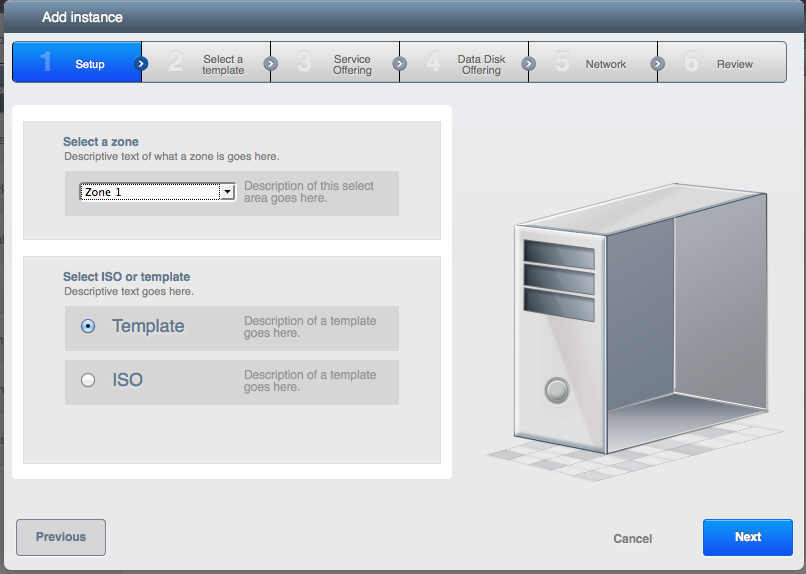
New VM’s can be added to CloudStack using a Wizard. The first step is to choose between a template (which is a pre-made server installation) or an ISO (which is more like booting an installation CD). Here we choose Template.

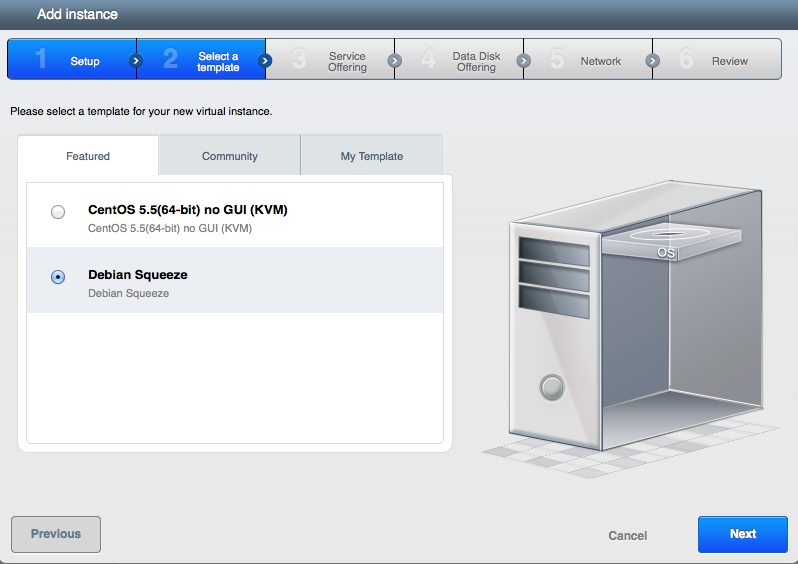
All available templates are presented to the user. We can choose between CentOS and Debian. Of course, any OS can be added as template. We select Debian here.

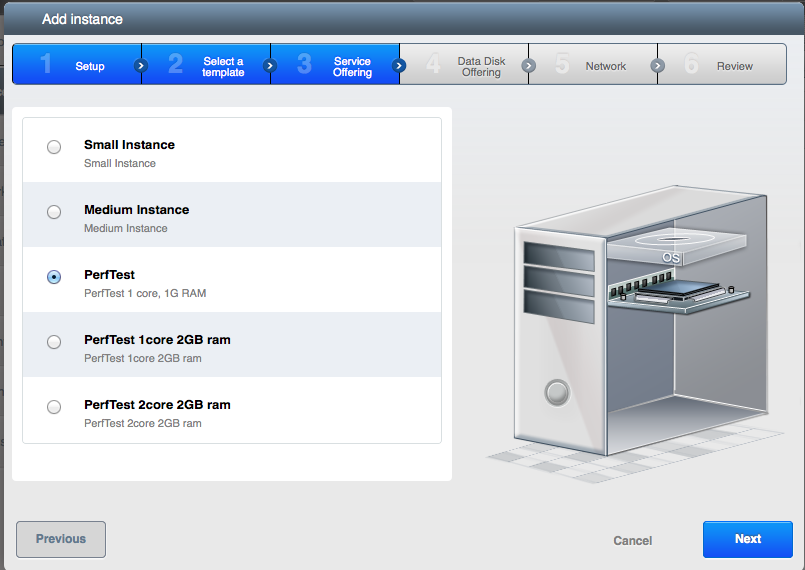
Now that we have selected a template, CloudStack wants to know what CPU and RAM the new VM should have. The user selects one of the pre-set options. It is also possible to present a price on this page, so the user knows what he will be billed for.

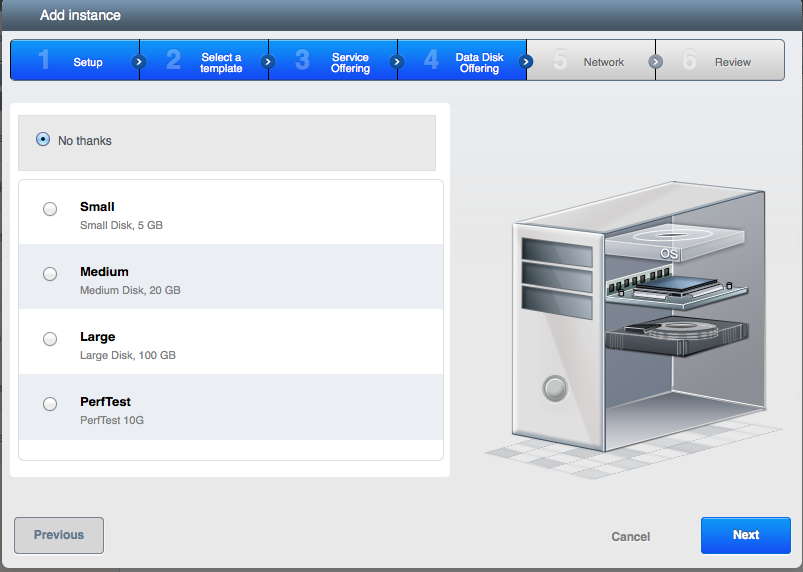
As an optional step, an additional data-disk can be added. This disk can later be detached from this VM, and attached to another. This way data can travel between VM’s.

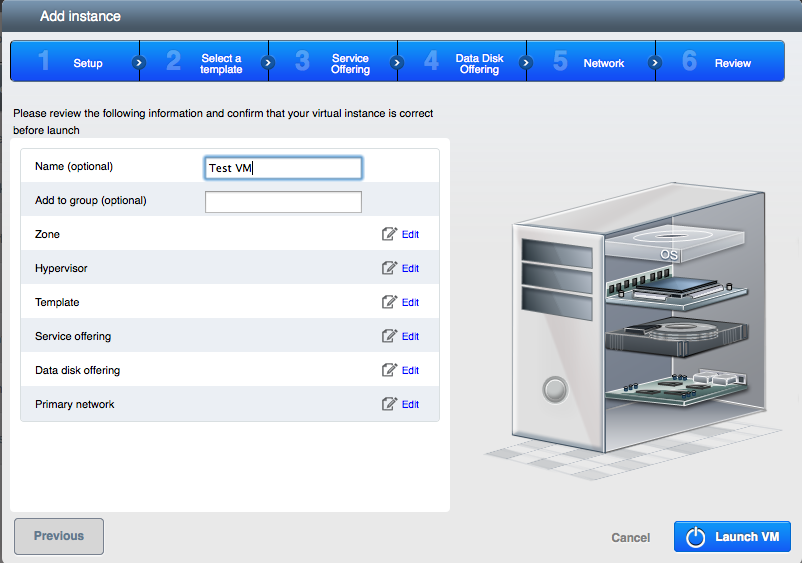
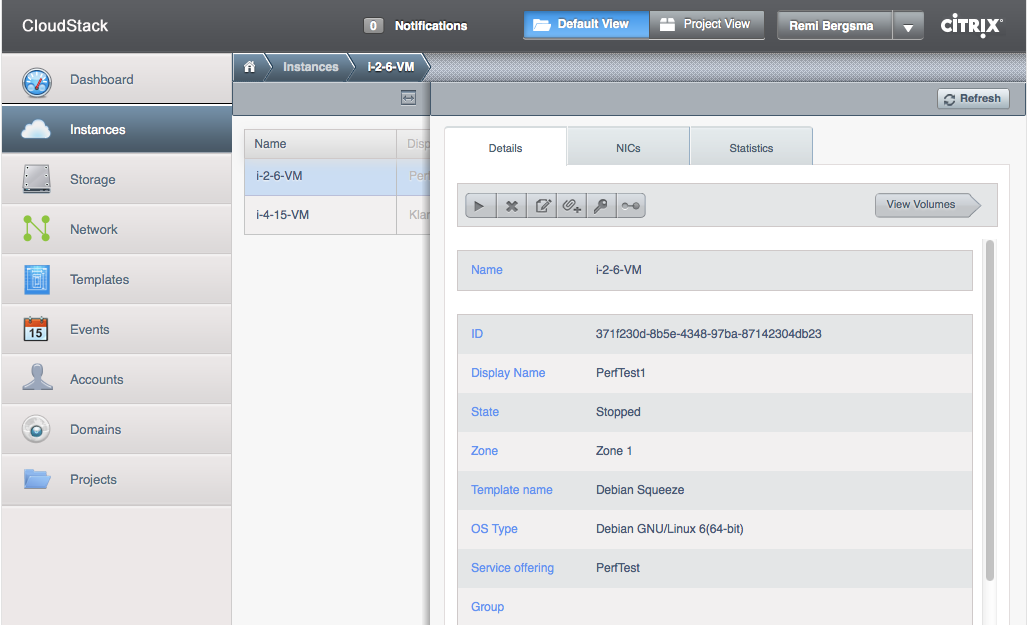
The final step is to give this VM a name and the Launch it! CloudStack will keep you posted about the status. Soon you will receive a message on screen noting the VM is running. In the menu you select Instances (that is what VM’s are called). When you select a given VM, you see a page with all of its settings. Have a look at the screenshot below.

This page shows the details of the VM. Different options are available when the VM is running or stopped etc. When not running, you can upgrade its service offering for example to a more powerful CPU or more RAM. When running, you can connect to the console to manage the VM through that.

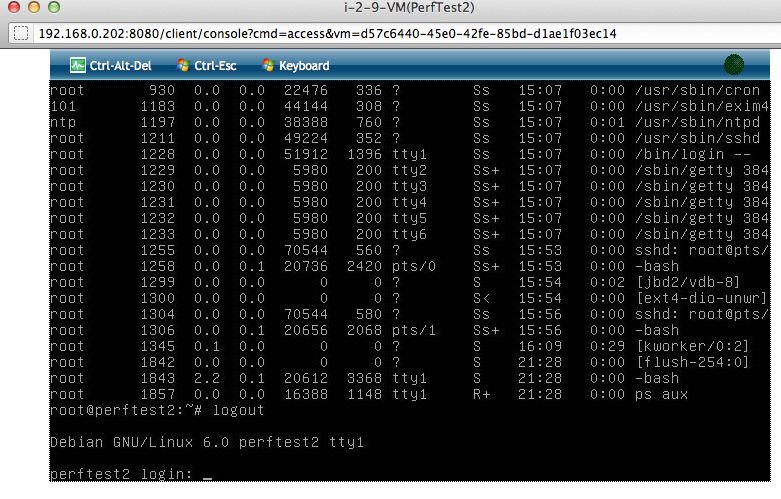
Working on the console (via a browser) looks like this. This is handy when you need to change the network options, or when a VM has a problem. Otherwise, working via a SSH-shell should be easier.

As you can see the CloudStack UI looks pretty nice! Not only is this a great product from a technical point of view, it also has a nice interface for users without a technical background.

CloudStack 3.0 is currently in beta and should be released any time soon.

Update: CloudStack 3.0.0 has been released. The screenshots look almost the same. Two differences:
1. On the login-page you now can choose between English and Japanese language
2. The ‘System’ menu on the left is renamed to ‘Infrastructure’, which indeed is a better name!