Archives For 30 November 1999

When working in shells, it’s very useful to have syntax highlighting. In vim it’s just ‘:sy on’ and you’re done. For those of you using GNU Nano, I’ll show you how to enable syntax highlighting as well.

To start, we’ll need some files which tell nano what to display in what color. Here is an example of such a file for PHP:

nano /usr/share/nano/php.nanorc

syntax "php" "\.php|\.inc$"
color white start="<\?(php)?" end="\?>"
color magenta start="<[^\?]" end="[^\?]>"
color magenta "\$[a-zA-Z_0-9]*"
color brightblue "\->[a-zA-Z_0-9]*"
color cyan "(\[)|(\])"
color brightyellow "(var|class|function|echo|case|break|default|exit|switch|if|else|elseif|@|while|return|public|private|proteted|static)\s"
color brightyellow "\<(try|throw|catch|operator|new)\>"
color white "="
color green "[,{}()]"
color green "=="
color brightgreen "('[^']*')|(\"[^"]*\")"
color yellow start=""
color yellow start="/\*" end="\*/"
color yellow start="#" end="$"
color yellow "//.*"

Then we tell nano where this file is to be found:

nano /etc/nanorc

And add this line:

## PHP
include "/usr/share/nano/php.nanorc"

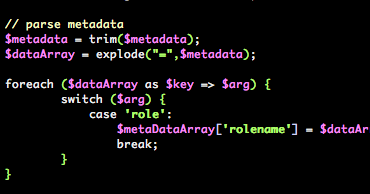
You then should see this when editing a PHP file with nano:
You can do the same for Bash files. Here’s the config file:

nano /usr/share/nano/sh.nanorc

syntax "sh" "\.sh$"
icolor brightgreen "^[0-9A-Z_]+\(\)"
color green "\<(case|do|done|elif|else|esac|exit|fi|for|function|if|in|local|read|return|select|shift|then|time|until|while)\>"
color green "(\{|\}|\(|\)|\;|\]|\[|`|\\|\$|<|>|!|=|&|\|)"
color green "-[Ldefgruwx]\>"
color green "-(eq|ne|gt|lt|ge|le|s|n|z)\>"
color brightblue "\<(cat|cd|chmod|chown|cp|echo|env|export|grep|install|let|ln|make|mkdir|mv|rm|sed|set|tar|touch|umask|unset)\>"
icolor brightred "\$\{?[0-9A-Z_!@#$*?-]+\}?"
color cyan "(^|[[:space:]])#.*$"
color brightyellow ""(\\.|[^"])*"" "'(\\.|[^'])*'"
color ,green "[[:space:]]+$"

It’s pretty easy to customize if you want. So now you never have to edit scripts without syntax highlighting again!

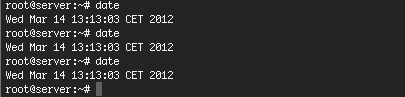
We still have some older hardware running for non-critical and lightweight operations. Since upgrading these old boxes to Debian Squeeze weird things started to happen. After some time, the system clock stops working and that results in processes to crash and new ones unable to start. Of course, nothing works properly on any computer without a working system clock. Here you see how that looks like:

First thought was to replace the CMOS battery, but that didn’t help and it occurred on multiple machines around the same time. Rebooting solves the problem for a while but 24-36 hours later the system clock stops again. Sometimes the problem stays away much longer. Also, some servers with the same hardware do not seem to have the problem. It seems hardware related. But is that really true?

Since the server crashes it is kinda hard to figure out what exactly happens. Logs aren’t properly written anymore and system processes are unreliable. Sometimes it is possible to access the server via SSH, sometimes it isn’t.

Today this happened again with one of our servers. Fortunately I was able to SSH into the machine and I found this warning in the logs:

Mar  14 13:00:05 server kernel: [97383.660485] Clocksource tsc unstable (delta = 4686838547 ns)

TSC is the Time Stamp Counter. Processors have dynamically changed clock speed (ofc to save power). The TSC is supposed to tick at the CPU rate so on frequency change, this ought to happen. The kernel will automatically switch to something else. This is true for modern hardware, this old CPU is set to constant_tsc (when using cat /proc/cpuinfo it’s one of the flags). It is thus supposed to run at the same frequency at all times.

The system might have multiple available clock sources. You can list the available clock sources in a system like this:

cat /sys/devices/system/clocksource/clocksource0/available_clocksource

On my system this returns:

tsc acpi_pm jiffies

To see which one is actually in use, issue:

cat /sys/devices/system/clocksource/clocksource0/current_clocksource

On my system this returns:

tsc

So this tells me I’m using ‘tsc’ as a Clock Source, and my system has two more options. Since I’m having trouble with ‘tsc’, let’s change the Clock Source from ‘tsc’ to ‘acpi_pm’.

echo acpi_pm > /sys/devices/system/clocksource/clocksource0/current_clocksource

Verify the new setting like this:

cat /sys/devices/system/clocksource/clocksource0/current_clocksource

It should now return ‘acpi_pm”.

This can be done at run time, when you reboot the setting is lost. It is a great way to test the setting. To make it permanent, add this line to the boot parameters in /boot/grub/menu.lst:

notsc clocksource=acpi_pm

I’ve just changed this on the server and I’m really curious whether this will be the solution to prevent the hangs! At least the time is still ticking.. 😉

If anyone has more suggestions or info, please let me know! I’ll keep you posted.

Update: Just reached 4 days of uptime!

Update 2: Today it’s 4 month’s after I wrote this blog. The machine is still up & running and has reached 106 days of uptime!

Update 3: After 7 months (222 days of uptime) I finally retired the machine since we migrated to our CloudStack cloud. The fix described above really works 🙂

In a previous post I described howto restore a OpenLDAP server from backup . But how to backup Open LDAP?

The backups I make consist of two parts:

1. First backup the LDAP database itself using a program called ‘slapcat.’ Slapcat  is  used  to generate an LDAP Directory Interchange Format (LDIF) output based upon the contents of a given LDAP database. This is a text version of your database which can be imported later. Think of it as a SQL-backup for relational databases. Anyway, here’s how to run slapcat on the OpenLDAP server:

slapcat -l backup.ldif

This will backup the whole database into the file called ‘backup.ldif’. You can then use this file to restore an OpenLDAP server later, using slapadd. Be sure to run this in a backup script from crontab and have a backup at least once per day.

2. Second thing I do, is backing up the config of the OpenLDAP server. This config is usually in /etc/ldap. Back it up using a tar, or using a technique like rsnapshot.

When you have this in place (and save the backups on a different place), you’ll be able to rebuild an OpenLDAP server without problems.

Then probably the code is not properly disconnecting the MySQL connection. The time MySQL waits for the next command to be send, can be controlled by the ‘wait_timeout’ parameter. The default is a massive 28800 seconds (8h). Setting this value too low gives ‘MySQl server has gone away’ errors, so be careful.

Debugging scripts that create many ‘sleeping’ connections is challenging. An easy solution is setting the ‘wait_timeout’ parameter to something low after the MySQL connection is started. This setting is then valid only for this current session.

Issue this query after every connect:

SET wait_timeout=60;

Database administrators can permanently change this setting in ‘/etc/mysql/my.cnf’ or by issuing a

SET GLOBAL wait_timeout=60;

to change it during runtime. Don’t forget to edit ‘my.cnf’ also, otherwise the setting is back to default the next time MySQL restarts.

After restoring an OpenLDAP server I found these lines in the logs:

Mar  5 06:50:03 ldap slapd[4815]: <= bdb_equality_candidates: (uidNumber) index_param failed (13)
Mar  5 06:50:04 ldap slapd[4815]: <= bdb_equality_candidates: (uid) index_param failed (13)

This means OpenLDAP is query’ing its database, but found no index for fields it often uses. In this case ‘uid’ and ‘uidNumber’. It seems due to restoring the backup, these indexes got lost. Here is how to add the indexes again:

Stop the OpenLDAP server:

/etc/init.d/slapd stop

Open the config file where we’ll add the indexes:

vim /etc/ldap/slapd.d/cn\=config/olcDatabase\=\{1\}hdb.ldif

Add the new indexes, after the first ‘olcDbIndex: objectClass eq in’ line. In my case this was in the file:

...
olcDbIndex: objectClass eq
...

And I changed that to:

...
olcDbIndex: objectClass eq
olcDbIndex: uid eq
olcDbIndex: uidNumber eq
olcDbIndex: uniqueMember eq
olcDbIndex: gidNumber eq
...

Be sure not to touch other settings in that file. Just add the lines after the first index. After that, make sure to reindex the database:

slapindex -F /etc/ldap/slapd.d/

Since I ran that as root user, I need to fix permissions afterwards:

chown -R openldap:openldap /var/lib/ldap

Make sure when you do a ‘ls -la’ on /var/lib/ldap, all files (including the folder itself) are owner and group ‘openldap’, otherwise OpenLDAP will not start.

Now it’s time to start OpenLDAP again:

/etc/init.d/slapd start

And all should be well again! When it does not start and look like this:

PANIC: fatal region error detected; run recovery

Be sure to check the permissions as stated above!