Archives For 30 November 1999

Lately I’ve been coding to automate the deployment of Virtual Machines that will run in our cloud. It’s inspired by blogs and code from Jason Hancock but implemented in a different way to meet our specific needs. Since CloudStack has a very flexible API, you can make it do anything you want. It works pretty cool so far.

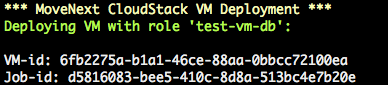
From a command line script we can deploy a new VM with a certain “role”. This role has a name, like “web server” or “test-vm-db” and contains the OS template name, the datacenter name, the networks to connect to, the hardware offering (CPU/Memory/Disk) and the account and domain to use. These are all CloudStack specific settings. When calling the deployVirtualMachine() API command, CloudStack will create a VM with exactly these specs. We use a simple php cli script to add a new server, like this:

Result:
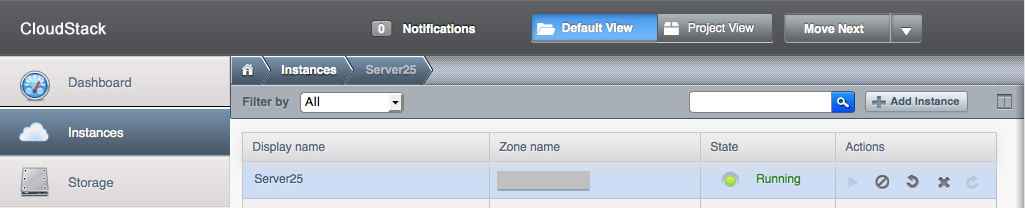
Since it is in a specific domain (defined by the role), other users in that domain can “see” and work with the new VM immediately. When you deploy for a client, they will “see” the new VM like this:
When the VM boots, it is receives its role name, “web server” for example, and sends this info to Puppet. This way, Puppet knows how to configure the new VM. It will do so and when it’s finished you have an exact same “web server” as the others. Run the script again and you’ll have another one. Puppet does not only do initial configuration, it will make sure the configuration stays consistent across the all servers it manages. When you want to change a setting, Puppet distributes it and makes sure it’s the same on all servers. All automatically!

Imagine the power behind this concept. All of a sudden you can create a script that can deploy a new web server in just minutes. Now even the loadbalancer itself can spin up a new web server to handle the higher load it receives. Or destroy a web server when there are too many idle web servers. That’s what you call elastic!

What you need to build this yourself is:
1. PHP CloudStack Client (to talk to CloudStack from PHP)
2. CloudStack API docs
3. Script to grab meta-data when VM has booted

Please see Jason Hancock‘s blog for some working examples of how he implemented it. As I said, CloudStack’s API is very flexible. But you can even extend the API, if you want to go further. Thanks for the inspiration Jason!

Networking in CloudStack 3.0 is awesome; the Virtual Router provides many cool features like LoadBalancing, PortForwarding, (s)NAT, DHCP, VPN and so on. When a new network is created and being used, a Virtual Router is automatically launched to support these features. Since the Virtual Router is a Single Point of Failure, you should turn on the HA (High Available) option; which actually addes a 2nd Virtual Router on each network. While this is pretty cool, it makes the number of System VM’s go up and when you don’t need them it’s kind of wasting resources.

For example, when I was creating a network for the web servers to talk privately to the database, I didn’t need a Virtual Router. All I want is them to be able to do networking to each other and that is all. When using the default settings, a Virtual Router is launched anyway.

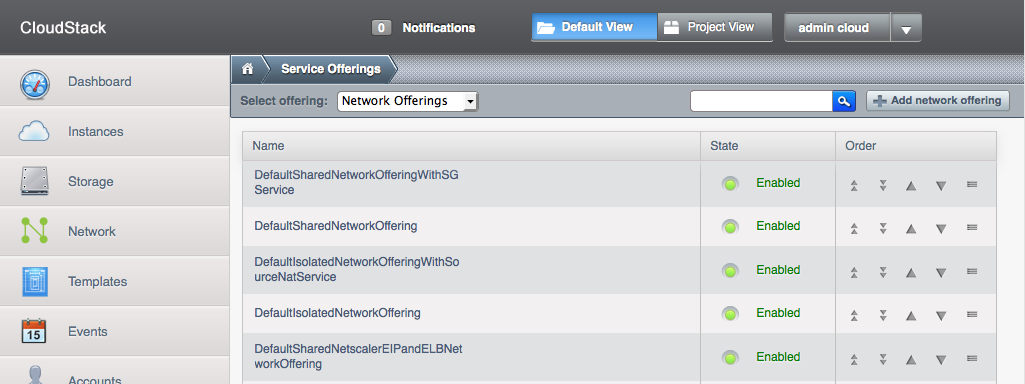
So how to tell CloudStack you don’t need a Virtual Router? Well, this is done through Service Offerings. You find this option on the menu at the left, it’s the last option. Select Network Offerings and a list is displayed.


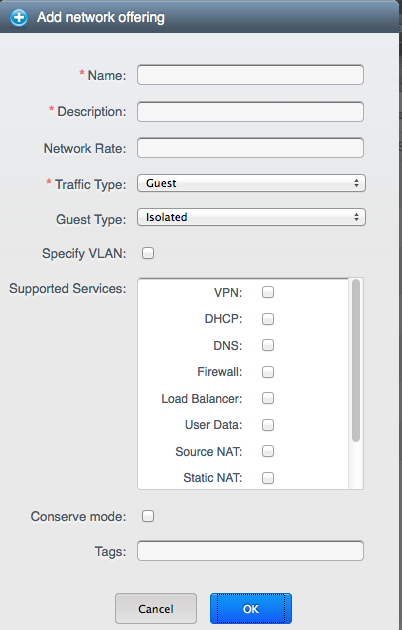
Click Add Network Offering at the right and fill in the form. When you do not select any service, you’ll create a Network Offering for which CloudStack does not spin off Virtual Routers.

Now, when you create a new Guest Network, make sure to select the Network Offering you just created. This will make sure your new Guest network will have no Virtual Router launched when in use 🙂

Update: I’ve written another blog with more details on how to use this network. Also have a look at the comments in both blogs for some examples and idea’s. Feel free to ask me any questions you have below!

Good news today when I came home from the office: CloudStack 3.0 stable has been released! I’d really been looking forward to this, because we’ll be using it in a big cloud project at work. With this release, we can finalize our cloud design and proof-of-concept setup. More about that later.

Thanks to the CloudStack team for this great release! 🙂

For a Cloud project at work, I made some screenshots of CloudStack to show our management. They wanted to know what an end-user will see in CloudStack 3.0. This is CloudStack from an end-user’s point-of-view:

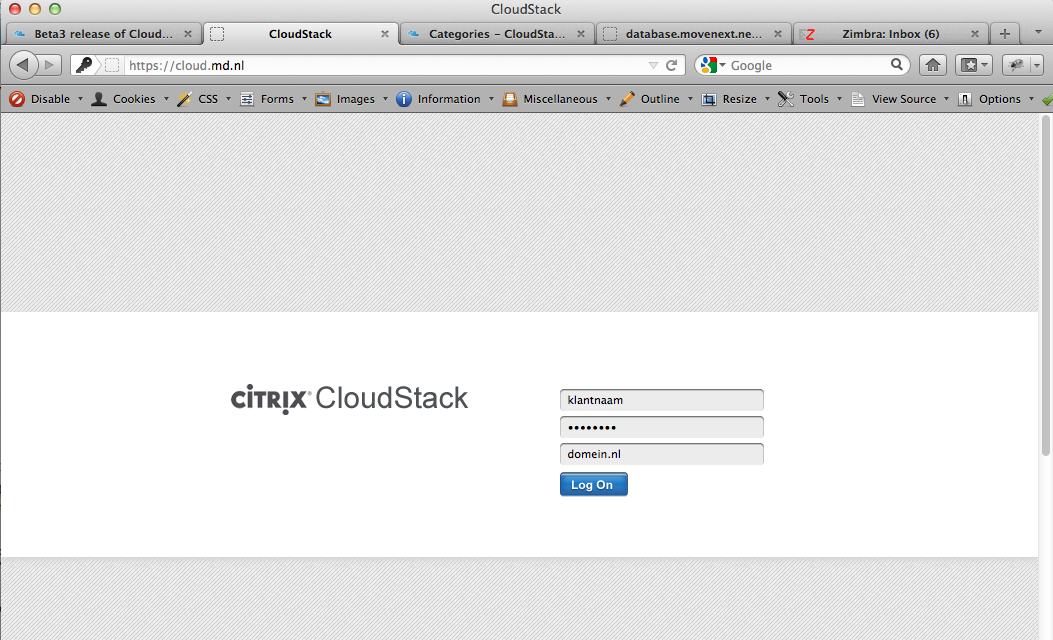
The login screen is where it all starts..

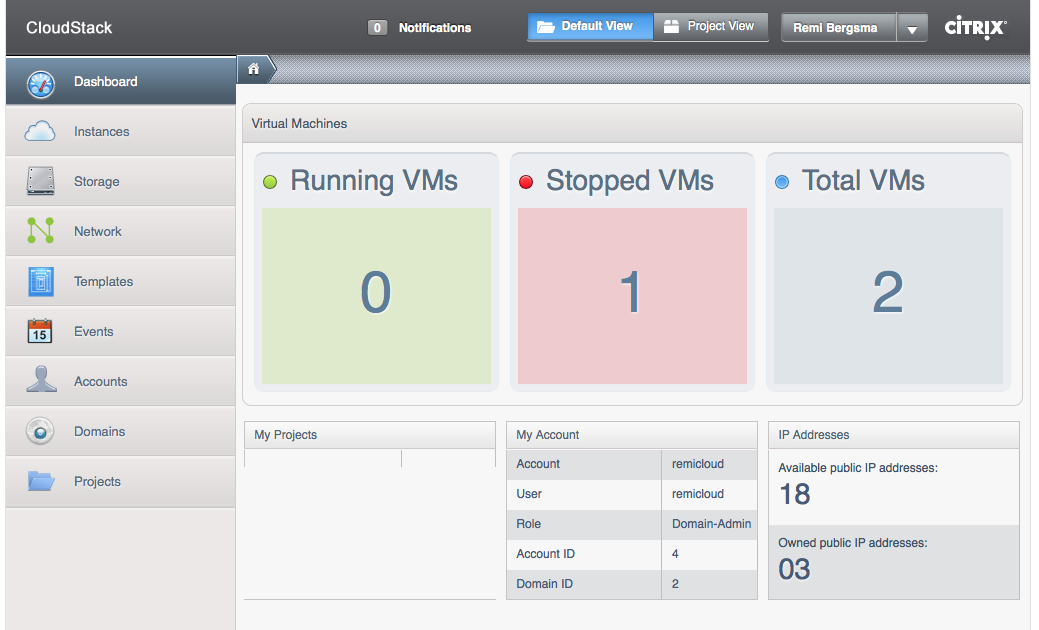
After logging in, users are presented with a Dashboard. Here is a nice and clear overview of what VM’s are running and stopped. As you can see, there is a nice menu at the right.

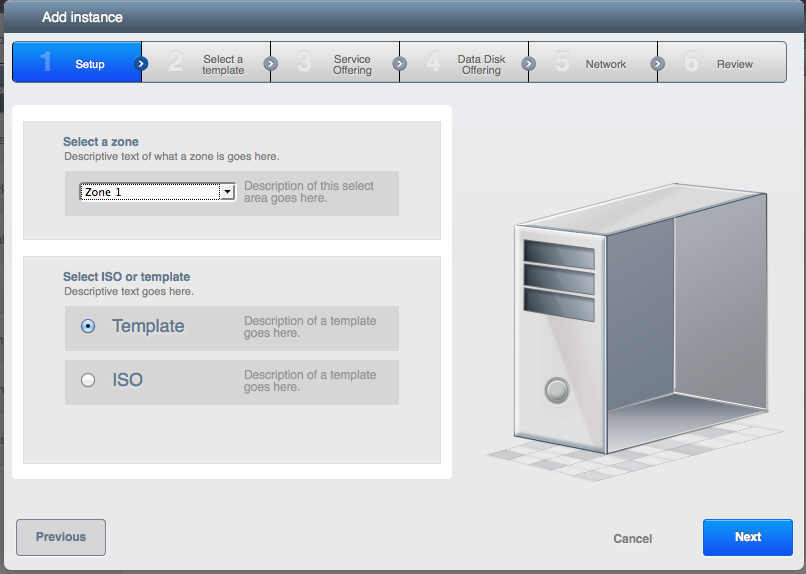
New VM’s can be added to CloudStack using a Wizard. The first step is to choose between a template (which is a pre-made server installation) or an ISO (which is more like booting an installation CD). Here we choose Template.

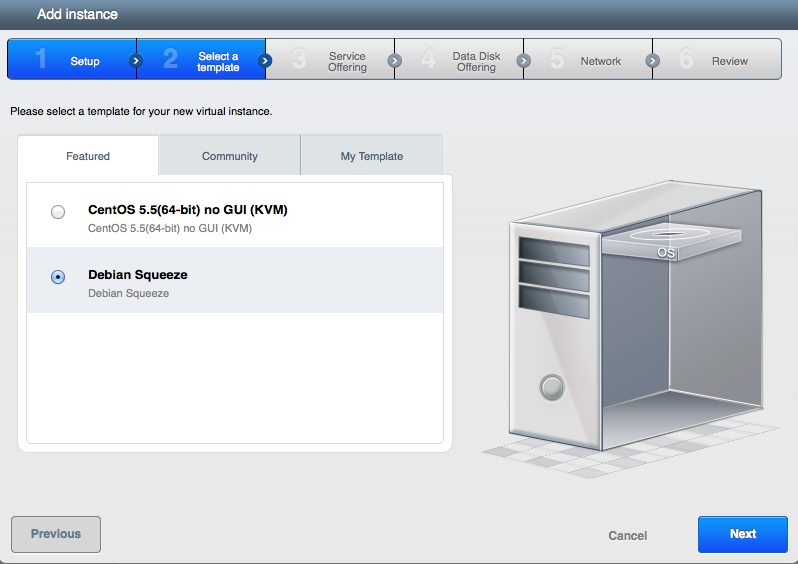
All available templates are presented to the user. We can choose between CentOS and Debian. Of course, any OS can be added as template. We select Debian here.

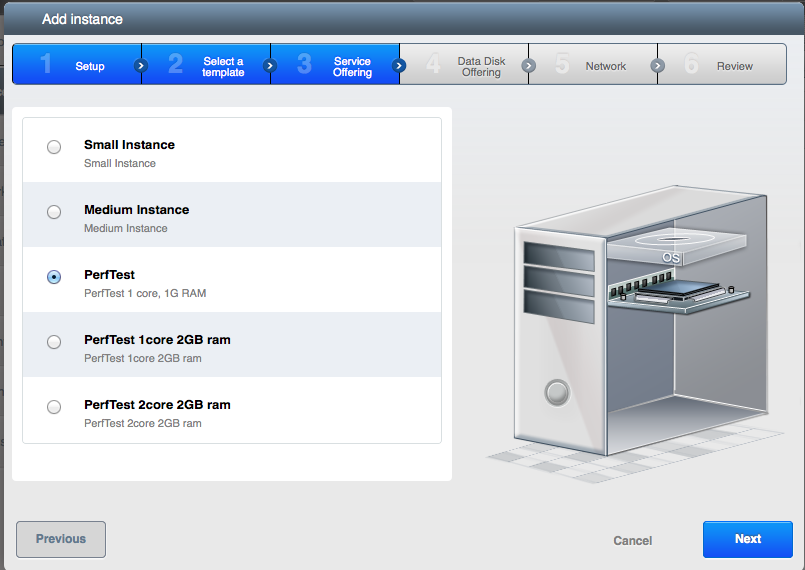
Now that we have selected a template, CloudStack wants to know what CPU and RAM the new VM should have. The user selects one of the pre-set options. It is also possible to present a price on this page, so the user knows what he will be billed for.

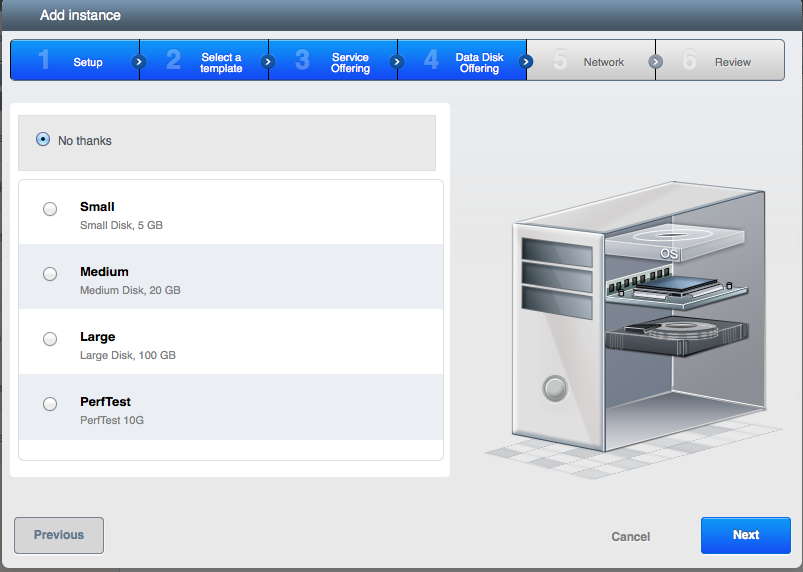
As an optional step, an additional data-disk can be added. This disk can later be detached from this VM, and attached to another. This way data can travel between VM’s.

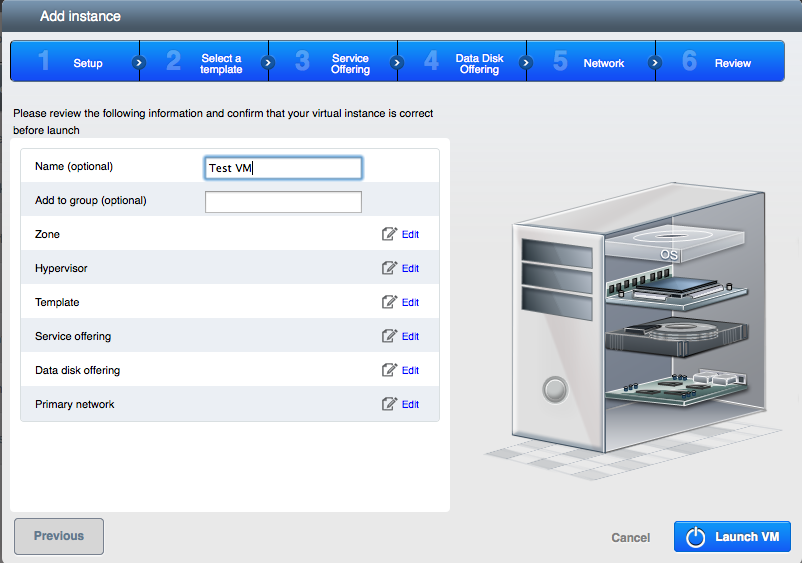
The final step is to give this VM a name and the Launch it! CloudStack will keep you posted about the status. Soon you will receive a message on screen noting the VM is running. In the menu you select Instances (that is what VM’s are called). When you select a given VM, you see a page with all of its settings. Have a look at the screenshot below.

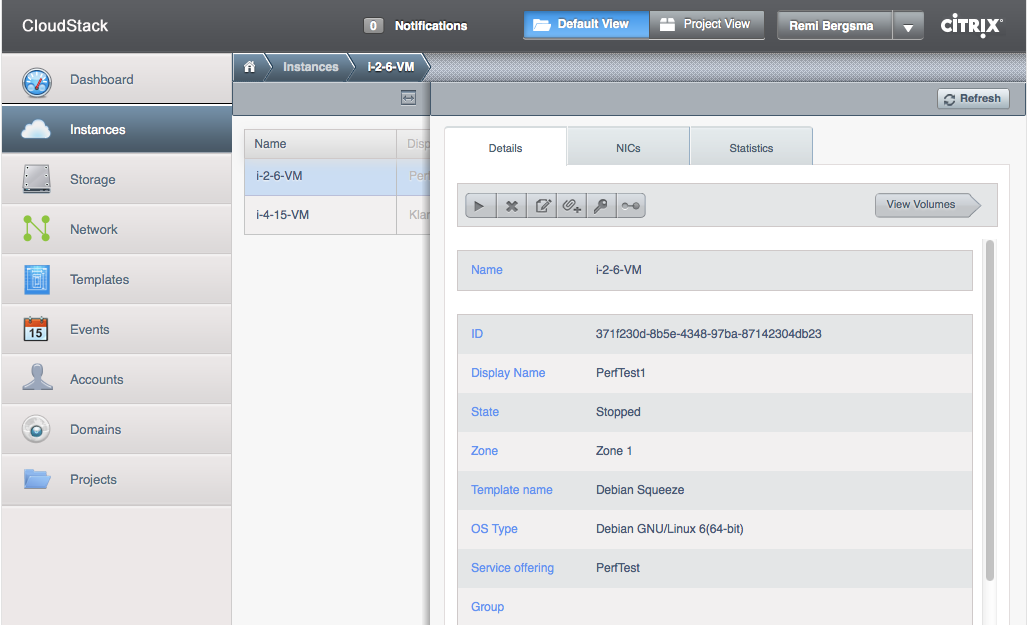
This page shows the details of the VM. Different options are available when the VM is running or stopped etc. When not running, you can upgrade its service offering for example to a more powerful CPU or more RAM. When running, you can connect to the console to manage the VM through that.

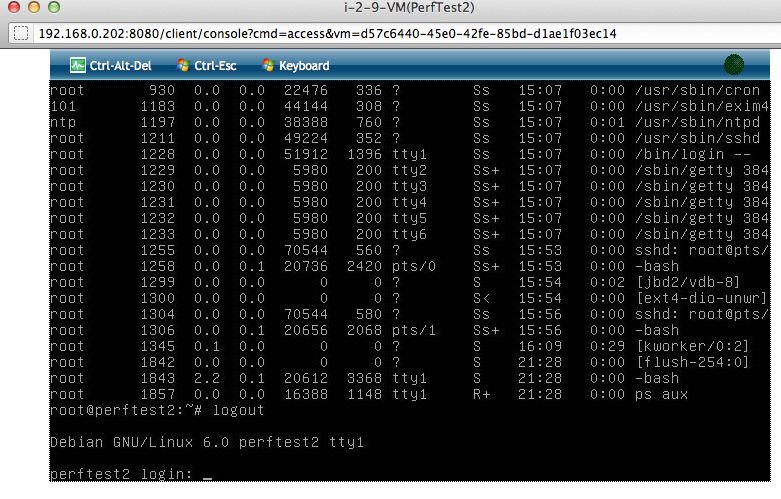
Working on the console (via a browser) looks like this. This is handy when you need to change the network options, or when a VM has a problem. Otherwise, working via a SSH-shell should be easier.

As you can see the CloudStack UI looks pretty nice! Not only is this a great product from a technical point of view, it also has a nice interface for users without a technical background.

CloudStack 3.0 is currently in beta and should be released any time soon.

Update: CloudStack 3.0.0 has been released. The screenshots look almost the same. Two differences:
1. On the login-page you now can choose between English and Japanese language
2. The ‘System’ menu on the left is renamed to ‘Infrastructure’, which indeed is a better name!

For about 6 weeks we’ve been working on finding out if -and how- it’d be possible to create our own cloud. My colleague Pim did a very good job on sorting out all the different software solutions (of course Open Source) and came up with CloudStack as the one we’d definitely to test with. So we did!

We’ve tested both the current stable 2.2 release and the upcoming 3.0 release, which is currently in beta. It took us quite some time to get the right hardware to test with. At first we used Ubuntu as OS but that turned out to be the wrong choice – for now. Ubuntu just isn’t very well supported and CloudStack more or less wants you to use RHEL or one of its free alternatives, like CentOS. We wanted to use Ubuntu at first because we had a lot of Debian experience. Although Google was our friend in helping sorting out differences between Debian-style and RedHat-style (for example in the networking setup). Looking back, moving to CentOS was no problem at all. We even have Kickstart running to be able to do quick unattended installs for the compute nodes. Cool! By the way, this is about the OS on the Compute nodes and Management-server. VM’s can of course be of any kind. In our case they definitely will run Debian.

CloudStack 2.2 works great now, but since we wanted so use some features of 3.0 we decided to give the 3.0 beta’s a go. The main feature 3.0 has, that 2.2 hasn’t, was the ability to move a VM from cluster to cluster (powered down, that is). Also networking has improved in 3.0. Another bonus is the gorgeous UI.

Our biggest hurdle was basically to understand how networking in CloudStack was meant to work. At the time we were testing beta1, the manuals were not complete yet so this proved to be a challenge at times… And – to be honest – we’d also some expectations of how we thought it’d work, that later on proved to be wrong. So we spend quite some time in playing with CloudStack, finding out how exactly it works, debug whenever something went wrong, etc. We listed the questions we had and in many occasions the CloudStack community was of great help. The good thing was that of all the the things we didn’t understand of that didn’t work, we were able to find a resolution to. Either we just had configured something wrong, or we found a bug (which was ok for a beta). It all looks very promising!

At the moment we’re testing beta3 and it has A LOT of improvements, both in UI, docs and functionality. Great job!

We went to Antwerp to visit “Build an Open Source Cloud Day“. There we learned a lot, and were able to talk to some experts on the subject. This helped us, back at the office, to start from scratch and setup CloudStack the right way (for us). Now we could really start experimenting! We’ve both setup a Basic and a Advanced zone to see what suites us most.

We’ve some performance testing to do, and make a decision about the storage we’ll be using. More about that in a later post.

Currently we’re finalizing designing our cloud and we’re pretty sure CloudStack will power it! By the end of the month 3.0 GA release will be there and then we’ll be able to build our cloud in production in march / april. Really looking forward to that!

I’ll keep you guys posted 🙂