Archives For 30 November 2011

I had an interesting problem lately regarding AWStats. Due to some delay, the log files weren’t processed in the right order and then AWStats ignored all old logs. This resulted in some days being blank in the stats and of course this is not something we want. Since we also have multiple web servers in our cluster, things started to get a bit complicated.

The log files from each of the web servers were concatenated and then split to a separate log file for each virtual host using the Apache2 split-logfile script.

The logs for an example virtual host looked like this:

1.2.2.1 - - [01/Aug/2012:05:50:50 +0200] "GET /nonexistent_page.html HTTP/1.1" 404 224 "-" "Java/1.6.0_04"
1.2.2.1 - - [01/Aug/2012:05:50:51 +0200] "GET /nonexistent_page.html HTTP/1.1" 404 224 "-" "Java/1.6.0_04"
1.2.2.1 - - [28/Jul/2012:04:02:06 +0200] "GET /nonexistent_page.html HTTP/1.1" 404 224 "-" "Java/1.6.0_32"

As you can see, AWStats processes August 1 and then refuses the older July records. To resort the log files, I ran:

cat website.unsorted.log | sort -t ' ' -k 4.9,4.12n -k 4.5,4.7M -k 4.2,4.3n -k 4.14,4.15n -k 4.17,4.18n -k 4.20,4.21n > website.log

As an alternative the AWStats scriptlogresolvemerge.pl can be used as well. Since I already had concatenated the log files and split them, the sort option above was faster to implement.

Now the log file looks like this:

1.2.2.1 - - [28/Jul/2012:04:02:06 +0200] "GET /nonexistent_page.html HTTP/1.1" 404 224 "-" "Java/1.6.0_32"
1.2.2.1 - - [01/Aug/2012:05:50:50 +0200] "GET /nonexistent_page.html HTTP/1.1" 404 224 "-" "Java/1.6.0_04"
1.2.2.1 - - [01/Aug/2012:05:50:51 +0200] "GET /nonexistent_page.html HTTP/1.1" 404 224 "-" "Java/1.6.0_04"

One last thing to solve was the AWStats history file. Since it had run before but with the wrong ordenend logfile, it had a wrong ‘LastLine’ setting. Experimenting with this showed it was best to remove the line, and replace it with a newline (so we won’t break the indexes). I used sed to fix it:

sed -i \
-e 's/^LastLine .*//' \
awstats072012.*

AWStats now updates the stats correctly and everybody is happy! Thanks to my colleagues Pim, Vincent and Mischa because they all helped solving some pieces of the puzzle. Yes, it’s nice having some technically skilled colleagues 🙂

 

My mother’s iPhone had issues and was replaced by a new one. That did Apple handle very well 🙂 The down side of a new iPhone is, of course, that all settings and photo’s were lost. Fortunately, I was smart enough to enable iCloud backups last year when I setup her iPhone.

So, when the new iPhone came in today, all I did was restore the iCloud backup in a few swipes and clicks. An hour or so later (due to downloading) everything was as before. Very cool!

I recommend everybody to setup iCloud backups. You find the settings in the iCloud screen. It’s easy and you never know…


Last week I wrote a small blog about OpenVPN on OSX Mountain Lion using Tunnelblick. I managed to get things to work using the latest Tunnelblick beta. But after a week working with it, I’m not too happy how it works right now. The two issues I have are:

1. DNS servers do not always get set properly, it feels unstable to me. I’ve seen /etc/resolv.conf with the right content, but still the old DNS servers were used by Mountain Lion. This is annoying: while connected to the vpn, hosts behind it do not resolve because the DNS server advertised by the OpenVPN server is not being used. This happened a few times last week, although most of the time it works ok. What goes wrong more often is the opposite: when disconnecting the connection, the OpenVPN advertised DNS server is still being used; but since we’re disconnected, it doesn’t resolve anymore and so nothing works. I’ve then to manually restore the right DNS servers. No fun, but I accepted it for now. I thought there’d be an update soon enough that’d solve this.

2. Problem two is more annoying: the connection is not stable, it’s slow and when working in a shell it is annoying to wait for the cursor to move. It frustrates me. I’d already blamed the guys in the office for heavy downloading only to discover it was Tunnelblick that was the problem. Sorry guys 😉 Connections to public hosts are fine by the way; I wasn’t really able to pinpoint this issue. It kept me from working effectively. If somebody knows what to do to get this working properly, let me know!

So I thought it’d be wise to look for an alternative, and I came across Viscosity. I just wanted to compare and see if it has the same issues. Don’t get me wrong: I always prefer open source software, but it does have to work. Tunnelblick and Mountain Lion clearly doesn’t work for me. Viscosity is $9 for a license, that sounds ok to me.

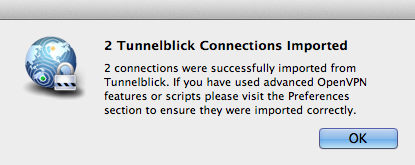
Downloading and installing is easy, like any other OSX app you open the dmg and drag the application to the application folder. That’s it. What surprised me was that it has an import feature that imports from Tunnelblick. One click, that’s all..

Now that’s cool. From the upper menu, you can now connect. I just works, a few seconds later I’m connected and.. DNS is handled properly. I tried connecting, disconnecting and all but can’t find any problem. It uses the OpenVPN specified DNS servers while connected, and the DHCP specified DNS servers while disconnected. Just like when I was running Tunnelblick on Lion. Also, I haven’t seen the slow connection issue. It’s a bit early to tell if that is gone for good. Since I have 30 days to try Viscosity, I’ll soon enough know 🙂

For me this is a fast en good solution. I hope Tunnelblick is able to sort out what goes wrong with Mountain Lion. Otherwise Viscosity probably has a lot of new users to welcome in the coming months. Kudos to the Sparklabs team!

Update: I did go back to Tunnelblick a few times but had no lock and didn’t want to spend more time on it. Then I bought Viscosity that just works and has been stable from the start.

I’ve upgraded my 3 year old MBP with a fast SSD. I decided to install from scratch instead of migrating or cloning the old disk. The good thing is that everything is now fast and clean. The downside is that all customisations I did over the past years are also gone.

One thing I customised was shortcuts. I forgot how easy this can be done in OSX, so I’ll describe it below so others can benefit as well.

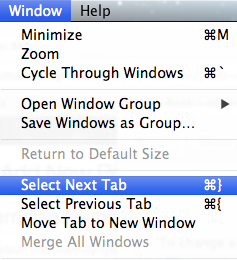
For example, I want the shortcuts in Terminal for Next and Previous tab to be CMD+right arrow, and CMD+left arrow. In Terminal you can see the default shortcuts for this in the menu:

It looks ok, but you cannot directly press ‘}’ on most keyboards; It’s SHIFT+], so this makes the default shortcut CMD+SHIFT+]. I prefer a shortcut with just two keys. To change these you’d go to:

System Preferences | Keyboard | Keyboard Shortcuts

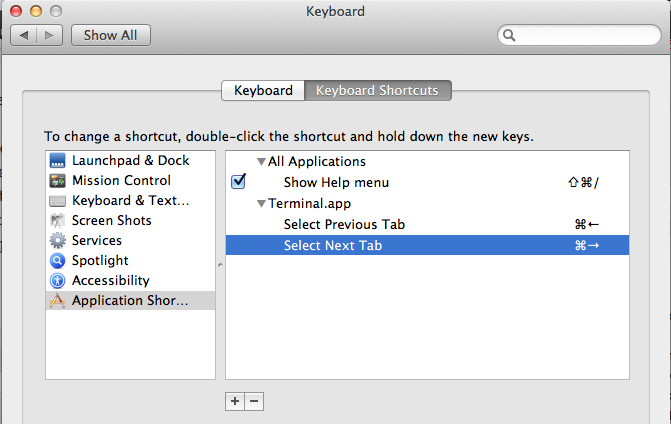
From the left, choose ‘Application Shortcuts’ and then click the + icon to add a new shortcut. First, select the application you want to change the shortcut for, ‘Terminal.app’ in this example. Then, specify the exact menu title for the command you’d like to change the shortcut for. As you can see above, you’d enter ‘Select Next Tab’ to change that command. Repeat for ‘Select Previous Tab’. Just press the shortcut and it will appear in the box. Afterwards it should look like this in the keyboard preferences pane:

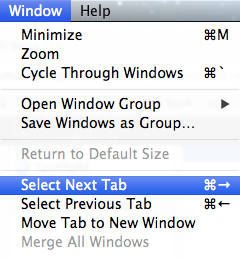
Now, go back to the Terminal application and have a look at the same menu as before. It should now list the shortcut you just added.

Try changing tabs by pressing CMD+left/right arrow.. it works!

One thing to note, it that the shortcuts I used in this example, by default belong to changing windows instead of tabs. When you want to change windows in Terminal using a shortcut, you’ll need to add new shortcuts for these as well. Alternatively, you use the CMS+` shortcut which still cycles through your windows, it just cannot go back. For me this works ok as this works in any application.

Changing shortcuts in Mac OSX is easy and allows you to make them work exactly as you prefer. I’ve done this in Mountain Lion, but I believe this can be done in Lion as well.

I just upgraded to OSX Mountain Lion and had some trouble this morning getting my OpenVPN connection (using Tunnelblick) to work. It would connect, but the DNS resolving was unstable. I managed to get it to work on the latest stable by changing the DNS-server setting to ‘set nameserver 3.0b10’ but then internet traffic would not work. The best solution for me at the moment is to upgrade to Beta release 3.3beta16 3.3beta18.

After upgrading, everything works as expected!

More info:

  1. Mountain Lion DNS issues with Tunnelblick
  2. Discussion the issue

Update: see this blog I wrote as well (experience after one week)

Update 2: TunnelBlick 3.3 beta 18 has just been released and the release notes state it has fixed more Mountain Lion bugs.