Archives For 10 July 2012

I’m upgrading our MySQL master/slave setup and am moving it to new (virtual) hardware in our cloud environment. One of the things I did last night was moving the MySQL slaves to a new master that I had prepared in the new environment. This post describes how I connected the slaves to their new master in the cloud.

First, you’ll need to make sure the new master has the same data as the old one.
1. Make sure no more updates occur on the old master
2. Create a sql dump of the master using mysqldump
3. Import that dump into the new master using mysql cmd line tool

At this point both masters should have the same data.
4. Now, shut down the old master as it can be retired 😉
5. Before allowing write access to the new master, note it’s position by executing this query:

mysql> show master status\G;
File: mn-bin.000005
Position: 11365777
Binlog_Do_DB: database_name
Binlog_Ignore_DB:
1 row in set (0.00 sec)

We’ll need this information later on when instructing the slaves to connect to their new master.

6. It’s now safe to allow write access again to the new master
7. Do this on any slave, it will connect it to the new master:

CHANGE MASTER TO
master_host=’master_hostname’,
master_user=’replicate_user’,
master_password=’password’,
master_log_file=’log-bin.000005‘,
master_log_pos= 11365777

Note the ‘master_log_file’ and ‘master_log_pos’. Their values are the ones we selected from the master at step 5. Then check if it worked (allow a few seconds to connect):

mysql> show slave status\G;

Look for these lines, they should say ‘Yes’:

Slave_IO_Running: Yes
Slave_SQL_Running: Yes

And the status should be:

Slave_IO_State: Waiting for master to send event

That’s it, the slave is now connected to a new master. Test it by updating the master, and checking whether the slave receives the update too.

I’ve had some trouble when using the Mac OSX Terminal app for some time now. Until today, it just gave me some annoying warnings from time to time. Like when installing an application with apt-get in Debian:

perl: warning: Setting locale failed.
perl: warning: Please check that your locale settings:
LANGUAGE = (unset),
LC_ALL = (unset),
LC_CTYPE = “UTF-8”,
LANG = “en_US.UTF-8”
are supported and installed on your system.
perl: warning: Falling back to the standard locale (“C”).
locale: Cannot set LC_CTYPE to default locale: No such file or directory
locale: Cannot set LC_ALL to default locale: No such file or directory

It did work, so nothing too serious. I’ve also found applications, like iotop for example, that refuses to start when LC_ALL was unset. But a quick

EXPORT LC_ALL=$LANG

made the application start, so I didn’t take the time to investigate it further. Today I run into a more serious issue that cost me quite some time to figure out.

I had stopped the pure-ftpd deamon to do some maintenance and then started it again. It did start without error, but connecting failed:

server:~# ftp ftp.server.nl
Connected to ftp.server.nl.
perl: warning: Setting locale failed.
ftp>

Nothing had changed in the ftp configuration. After some debugging and trial & error, I found out that when I started the deamon from within a shell on Ubuntu it worked, but when I started it within a shell on my MacBook, it didn’t.

When looking at the locales I found:

server:~# locale
locale: Cannot set LC_CTYPE to default locale: No such file or directory
locale: Cannot set LC_ALL to default locale: No such file or directory
LANG=en_US.UTF-8
LC_CTYPE=UTF-8
LC_NUMERIC=”en_US.UTF-8″
LC_TIME=”en_US.UTF-8″
LC_COLLATE=”en_US.UTF-8″
LC_MONETARY=”en_US.UTF-8″
LC_MESSAGES=”en_US.UTF-8″
LC_PAPER=”en_US.UTF-8″
LC_NAME=”en_US.UTF-8″
LC_ADDRESS=”en_US.UTF-8″
LC_TELEPHONE=”en_US.UTF-8″
LC_MEASUREMENT=”en_US.UTF-8″
LC_IDENTIFICATION=”en_US.UTF-8″
LC_ALL=

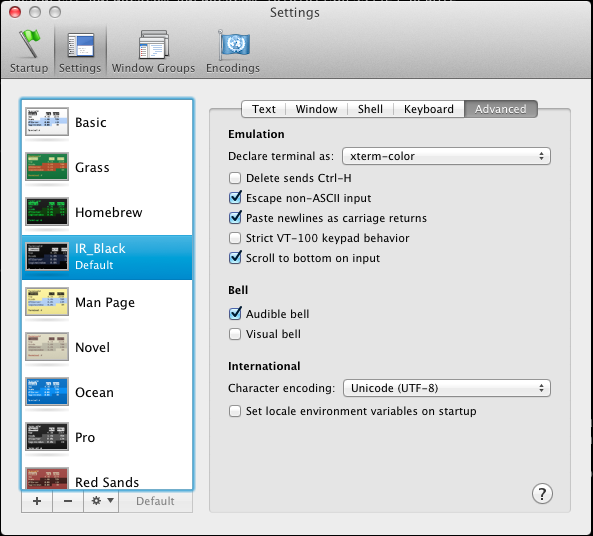
Notice the two errors at the top. I talked to a colleague about this and he suggested looking at the Terminal app settings. There I found a setting called “Set locale environment variables on startup” which was activated. The setting is located in Preferences | Settings | Advanced. I’ve unchecked the button now as you can see in this screenshot:

When closing the Terminal app, and reopening it again, I tried again:

server:~# locale
LANG=en_US.UTF-8
LC_CTYPE=”en_US.UTF-8″
LC_NUMERIC=”en_US.UTF-8″
LC_TIME=”en_US.UTF-8″
LC_COLLATE=”en_US.UTF-8″
LC_MONETARY=”en_US.UTF-8″
LC_MESSAGES=”en_US.UTF-8″
LC_PAPER=”en_US.UTF-8″
LC_NAME=”en_US.UTF-8″
LC_ADDRESS=”en_US.UTF-8″
LC_TELEPHONE=”en_US.UTF-8″
LC_MEASUREMENT=”en_US.UTF-8″
LC_IDENTIFICATION=”en_US.UTF-8″
LC_ALL=

No more errors! I tried restarting the pure-ftpd deamon from my Terminal app and it now works as expected. Even the warnings and errors when installing applications in Debian (apt-get) are gone. In fact, it seems this is the way it is supposed to work.

Glad I’ve fixed this 🙂

Update: As Reza mentions in the comments, it’s also possible to fix this problem on the server side. This is the best way to go if you want to fix this for your users. Thanks Reza!